Before enrolling RFID into a list's ID card, ensure there is a UID header/column. Without a UID header/column, the printer will not be able to enroll the RFID into the card. The printer only recognizes the UID header/column as a RFID compatible header/column.

Click here to learn how to edit headers/columns.

Please note that screenshots are taken on Google Chrome. Microsoft Edge may look different when printing.
Print an ID Card
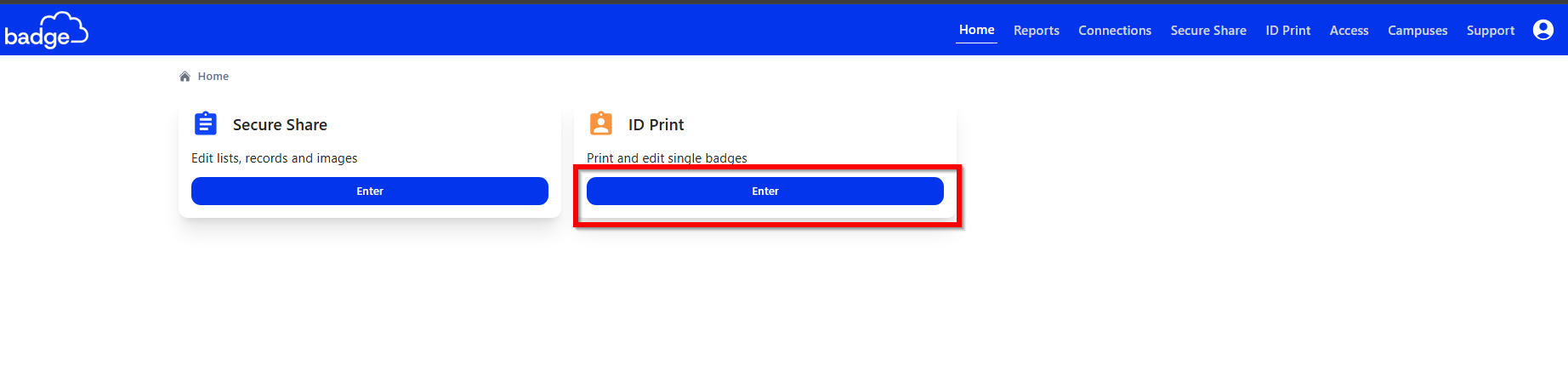
1. Click ENTER in the ID Print module
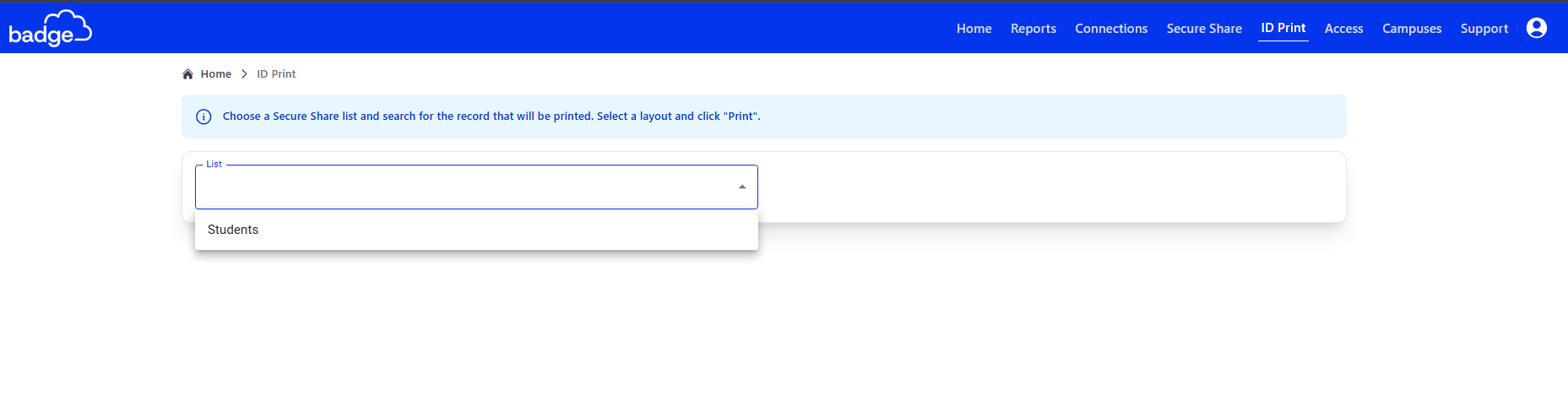
2. Click on the drop-down menu > Find the List Name (e.g., school, staff, district, office) you want to view > Select List
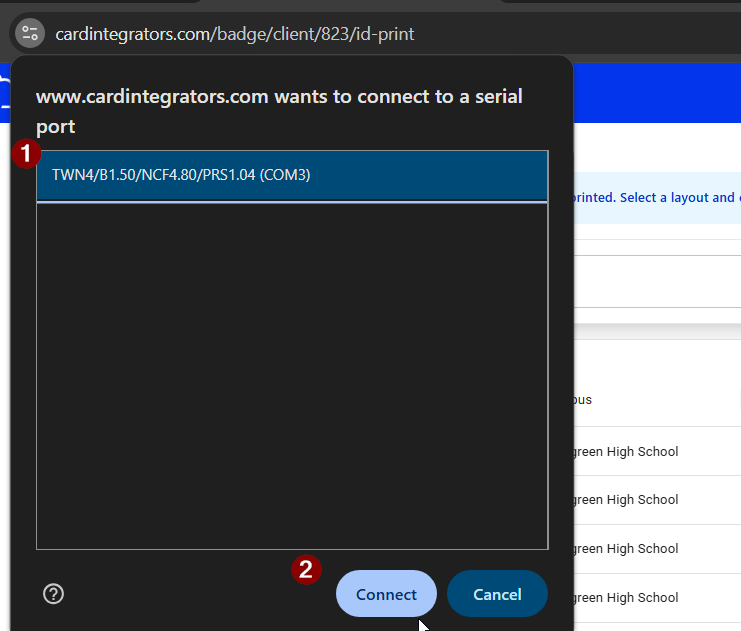
3. A pop-up window will appear with the printer's serial port > Select TWN4 > Click Connect
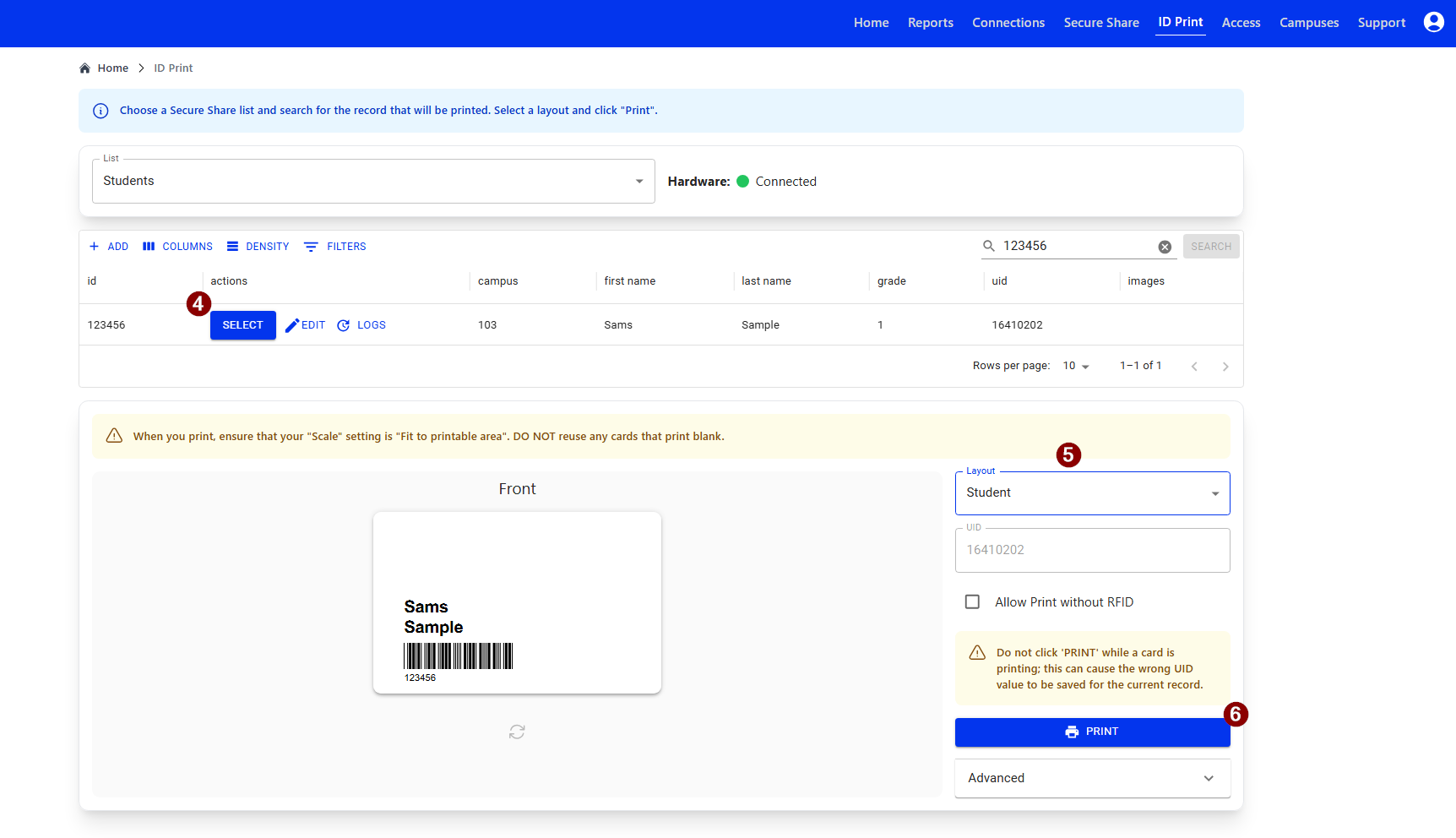
- You should see a green Connected to Hardware message next to the list name

4. Search the record you want to print > Click Select
- Ensure the information in record is accurate.
- You can search by any field including: name, id, and campus
- A layout preview should appear at the bottom of the screen.
5. Select a layout
6. Click Print
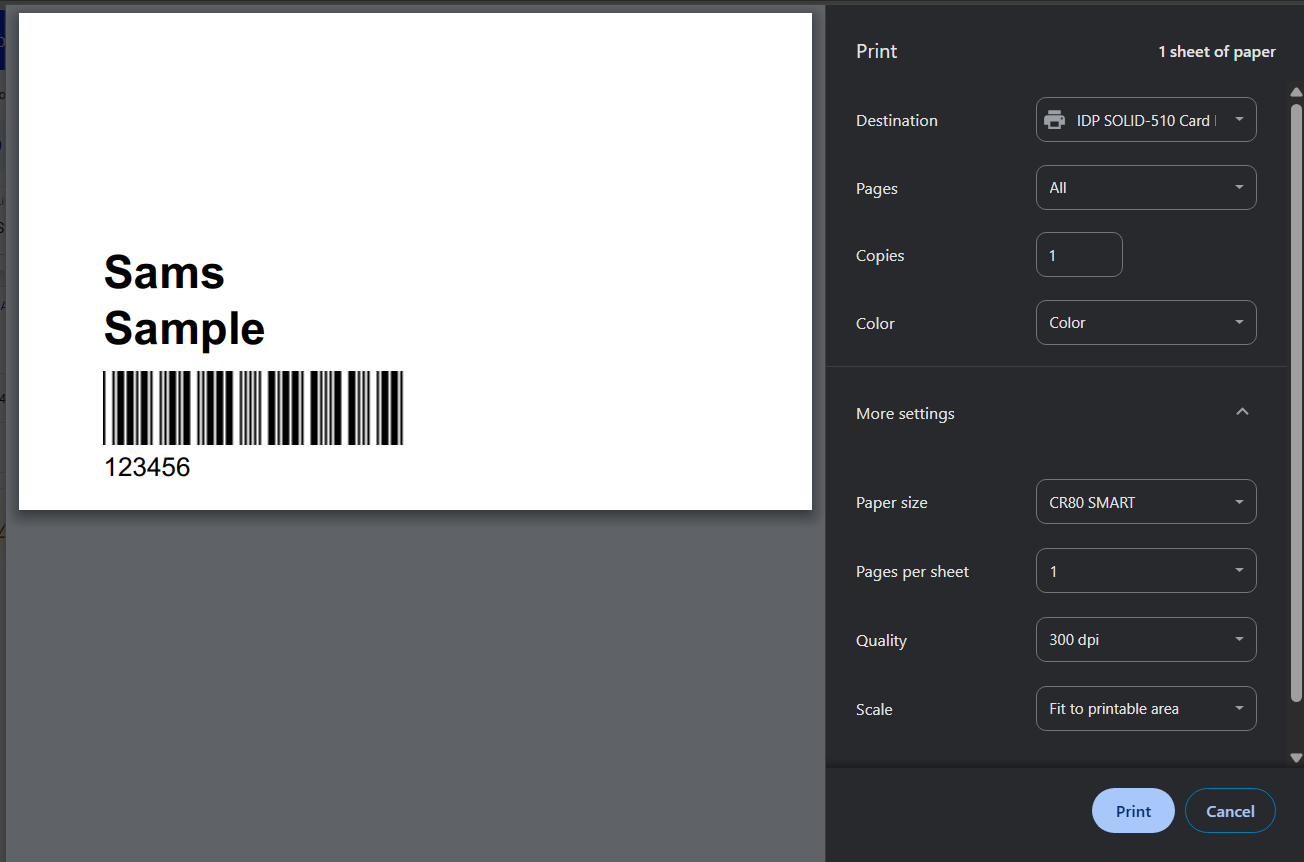
7. Ensure the destination is your printer. For first time prints, ensure the print settings are correct
- For first time prints, ensure the print settings are correct. Click More Settings
- Size to CR80 SMART
- Quality to 300 dpi
- Scale to Fit to printable area
- You will see the UID column populate a new RFID value after the card prints and a green successful enrollment message appears on the bottom left corner of the page.

- If you are getting a red notification stating enrollment failed, Click here to read about confirming your API connection.
Was this article helpful?
That’s Great!
Thank you for your feedback
Sorry! We couldn't be helpful
Thank you for your feedback
Feedback sent
We appreciate your effort and will try to fix the article