In ID Print, Badge Operators can edit lists by adding new headers/columns.
If you are a Badge Owner or have been given permission as a Badge Operators, you can edit lists in Secure Share.Edit Headers/Columns
1. Click ENTER in the ID Print module

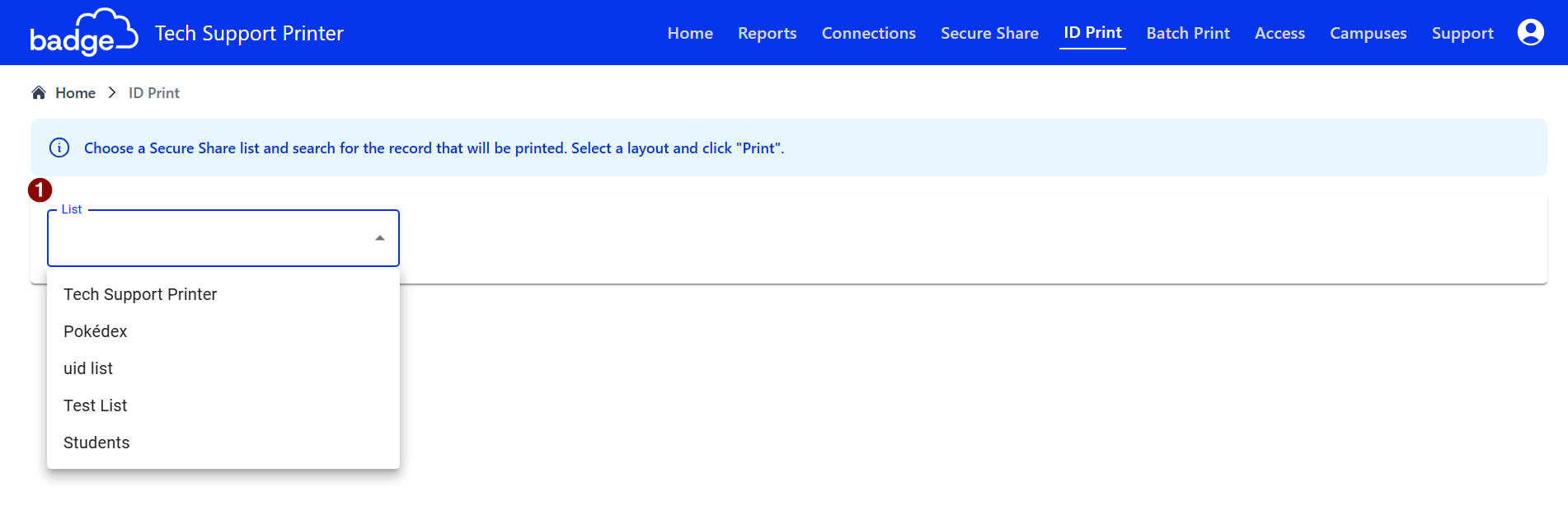
2. Click on the drop-down menu > Find the List Name (e.g., school, staff, district, office) you want to view > Select List
3. On the right side of each current header/column name, Click on the three dots. A menu will appear
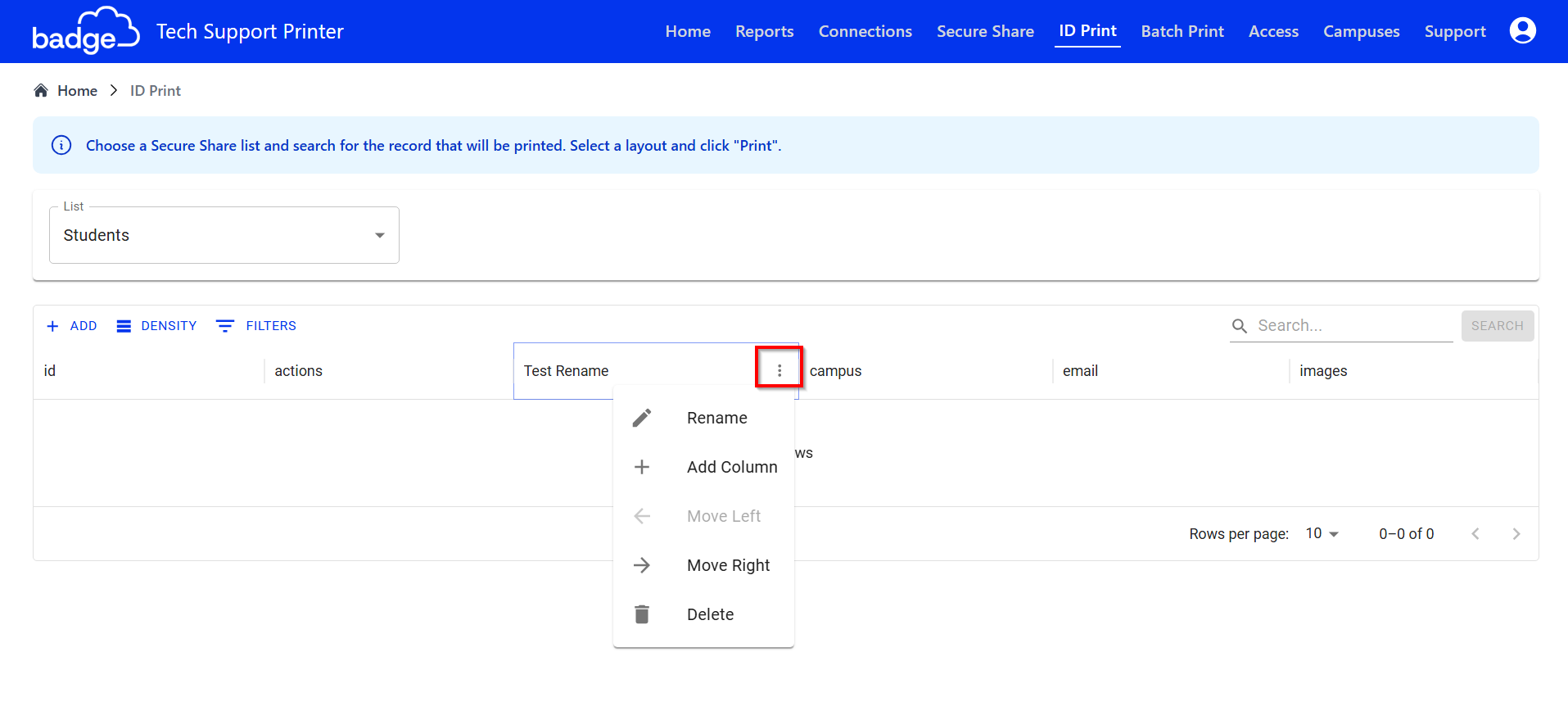
4. Select an action
Key Actions
Rename: Renames the current header/column

Add Column: Adds a new column

Insert Left/Right: Adds a new header/column to either side of current header/column

Move Left/Right: Switches position with either side of current header/column

Delete: Removes the current header/column
4a. Clicking Add Column bring up a menu pop-up, select either E-mail or Custom Column:
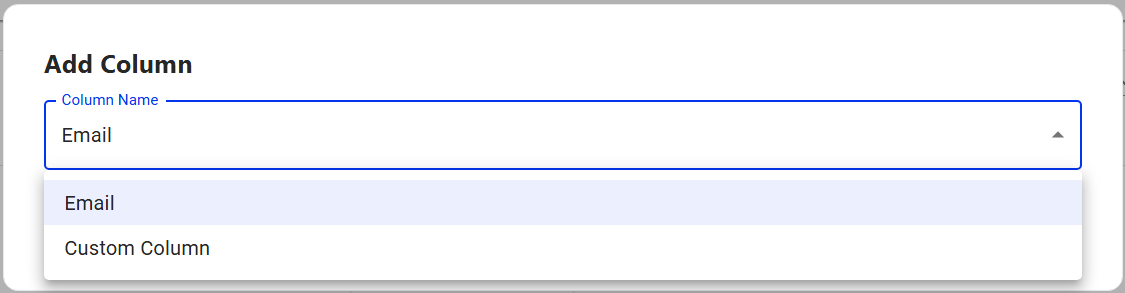
An Email column cannot be deleted by Owners or Operators.
Contact us at Tech Support if you need it removed.
We generally recommend that columns be added via the CSV's being imported.
Adding a column without updating the CSVs will cause import to fail
5. Complete the selected action
Was this article helpful?
That’s Great!
Thank you for your feedback
Sorry! We couldn't be helpful
Thank you for your feedback
Feedback sent
We appreciate your effort and will try to fix the article