Run a Report
1. Go to Control Panel > Devices and Printers > Set your office printer as default

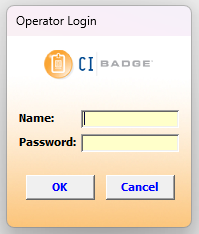
Setting your office printer to default is important to ensure you are able to run and view a report. 2. Login to CI Badge as admin
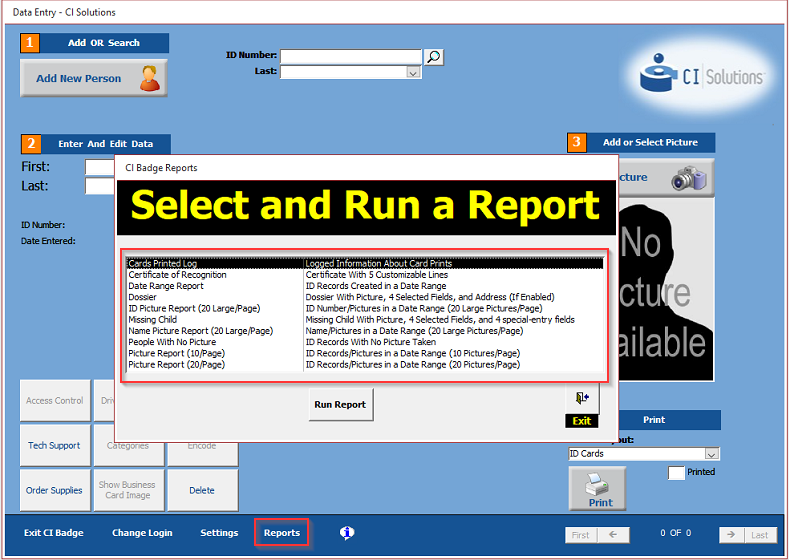
3. Click Reports > Select a report type > Run Report
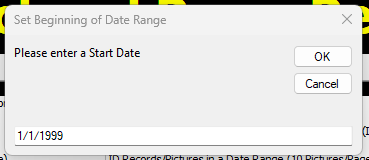
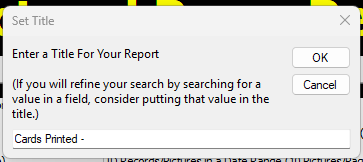
4. Enter the date range of your report and a title
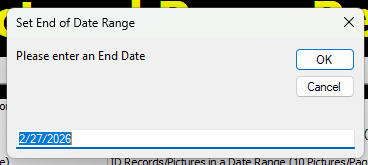
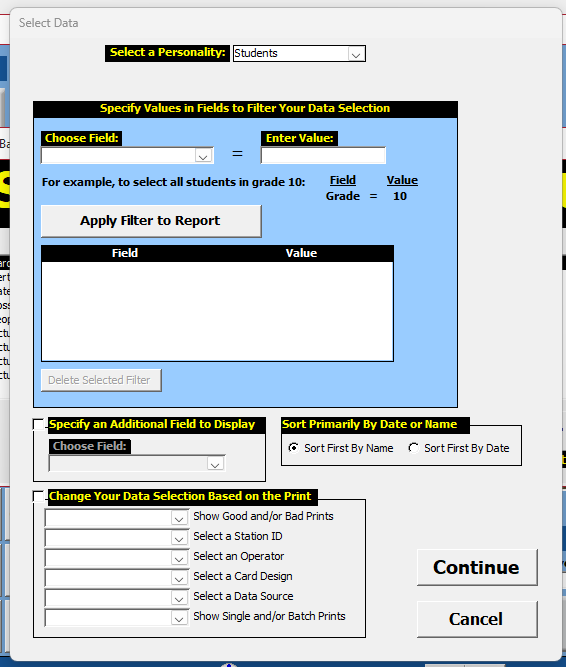
5. Set filters if needed by Choosing a Field, Entering a Value, then Apply Filter to Report. Continue
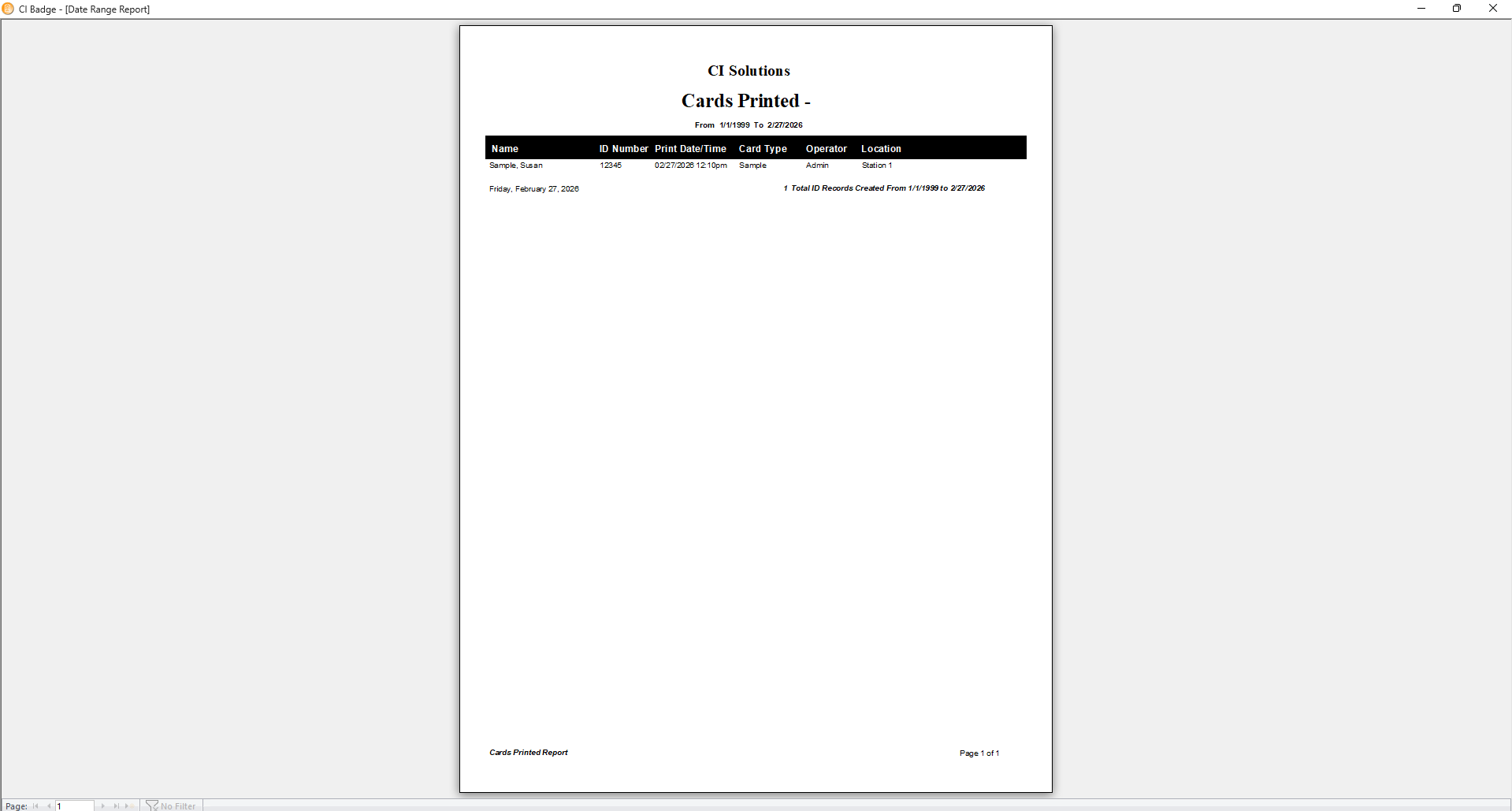
6. The report will appear in a new window
Was this article helpful?
That’s Great!
Thank you for your feedback
Sorry! We couldn't be helpful
Thank you for your feedback
Feedback sent
We appreciate your effort and will try to fix the article