This article is on how to modify a CI Badge Layout.
Caution: You cannot edit the CI Badge files in the "Data" folder while CI Badge is open
TABLE OF CONTENTS
What are fields?
Fields are the information you enter in CI Badge that gets printed on the card.
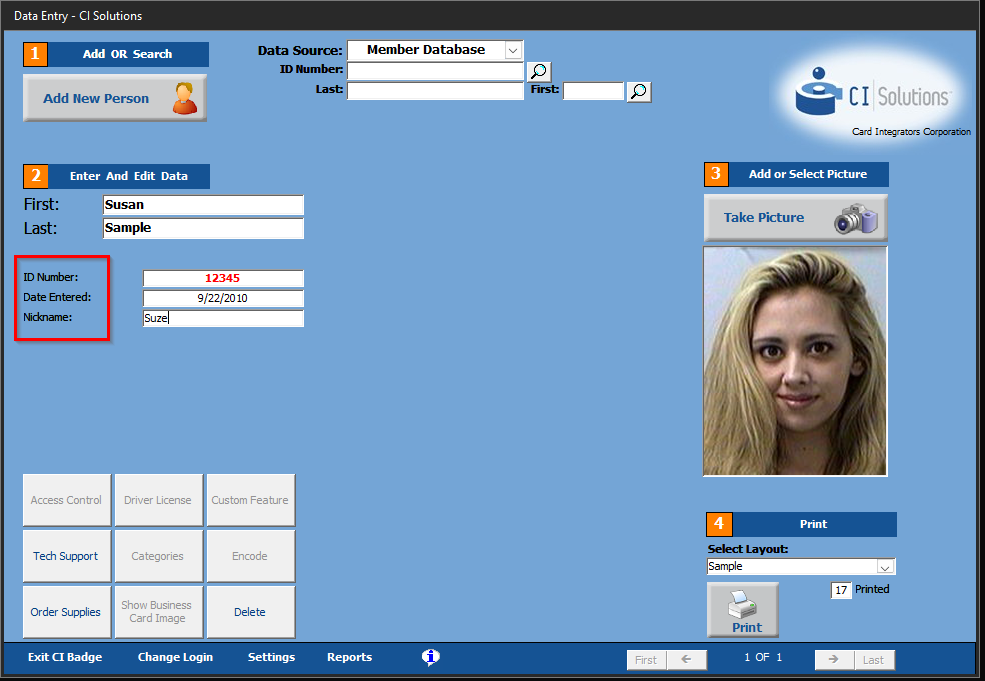
Image above "Fields" highlighted in red
Verify which "Fields" are already in use
1. Open CI Badge
2. Login as Admin
Username: Admin
Password: admin
3. Click "Settings"
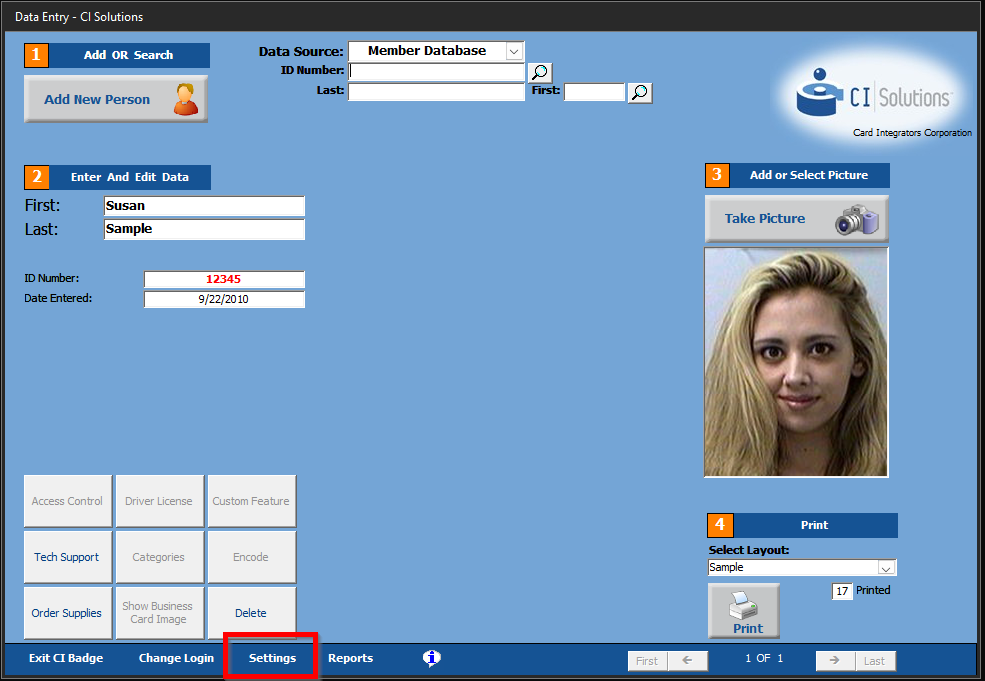
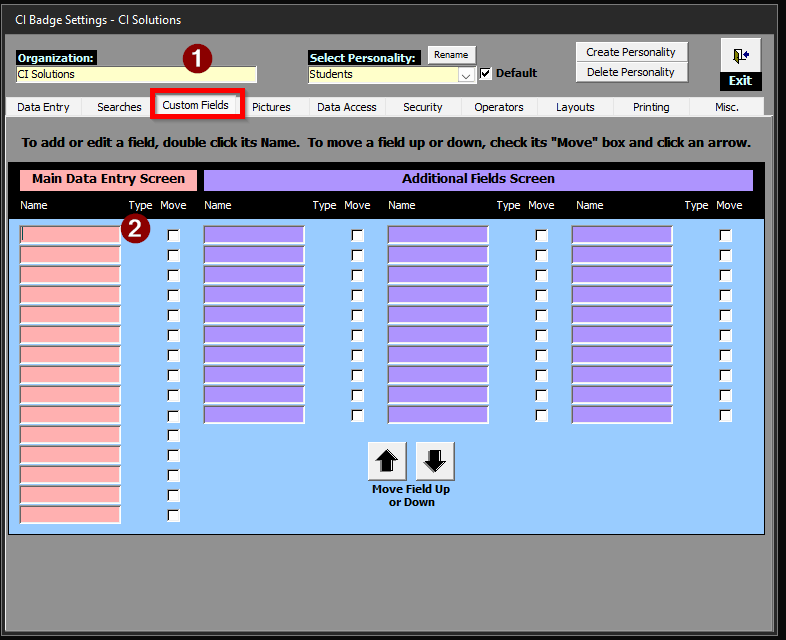
4. Navigate to the tab "Custom Fields" and Double click one of the pink or purple cells.
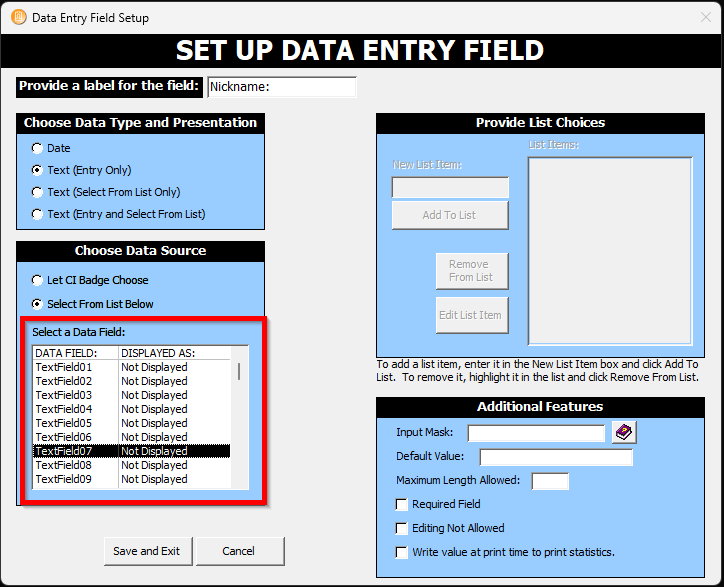
5. In the "edit screen" you can see which of the Custom Fields are already assigned
5a. If it shows "Not Displayed" then the field has not been assigned.
How to add a new Custom Field
1. Open CIBCards82 or CIBCards83.
a. These change based on the version of CI Badge you have installed-- v8.2 or v8.3
b. File location: PC > Windows (C:) > CI Solutions > CI Badge > Data
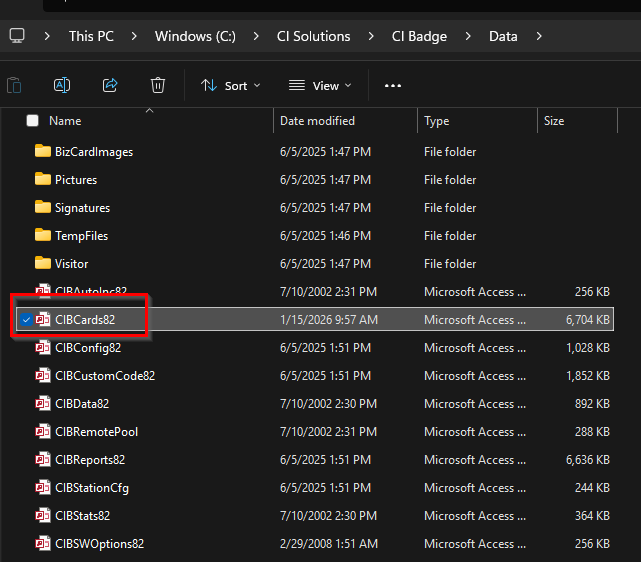
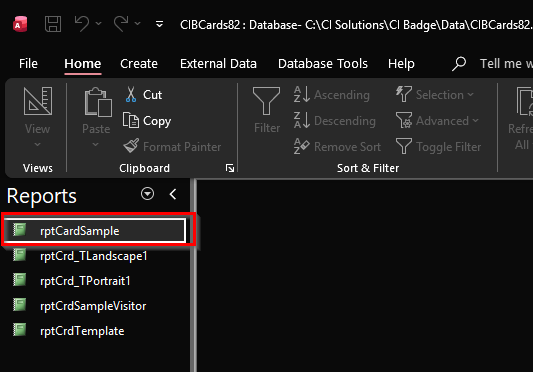
2. Find the layout that you want to modify, then right click and select "Design View":
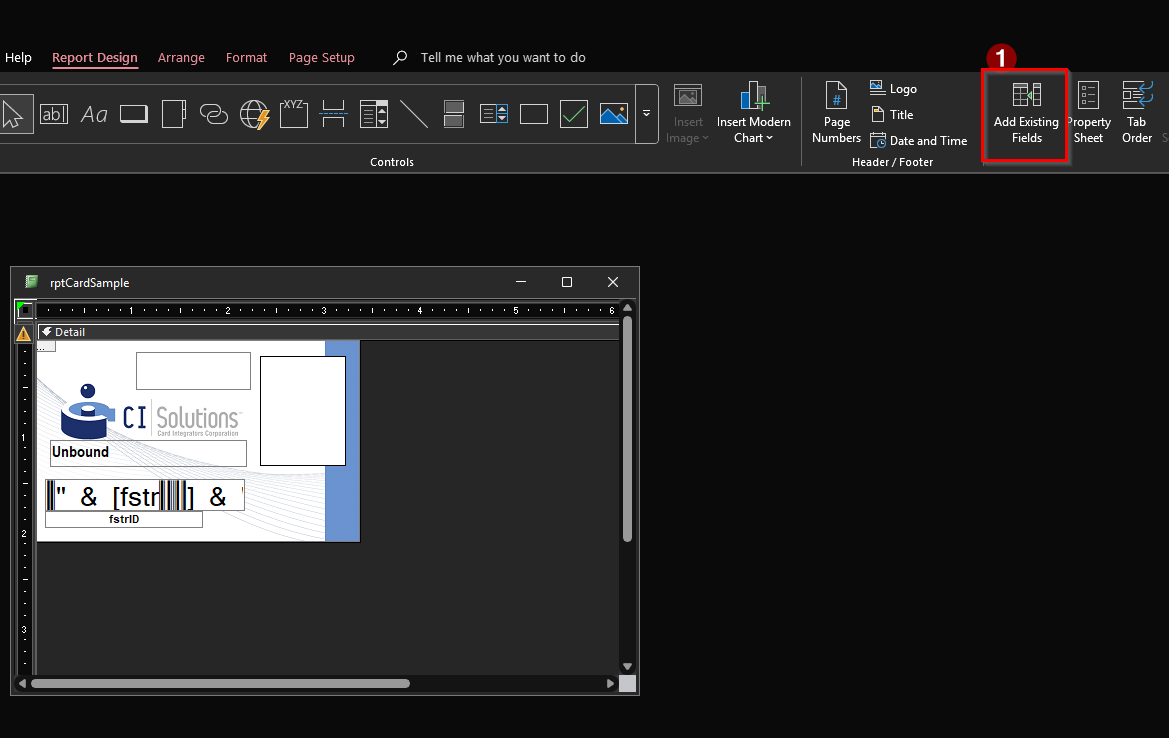
3. Once the layout is open in Design View, under "Report Design" click "Add Existing Fields"
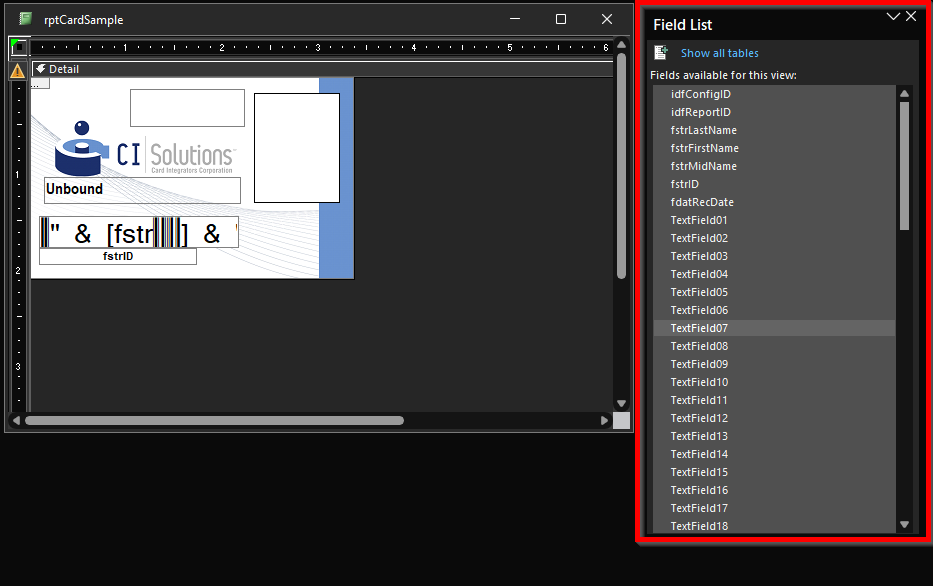
4. A "Field List" will pop-up. Here, you will select a "TextField" or "DateField" by double clicking it. This will apply that Custom Field to the Design.
5. Once you select your desired Custom Field to add, you will need to place it where you want it to be printed on the card.
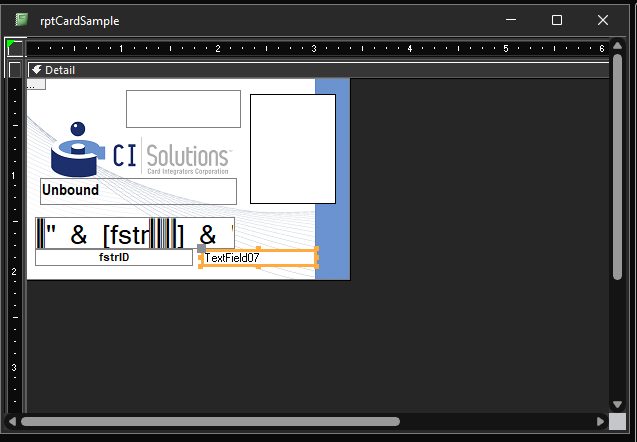
6. Text Fields will automatically come with a "Border" that will show up on print. To make it transparent, in the top left, select "Property Sheet" and make sure that the Custom Field you want to use is selected
6a. Then, adjust the "Border Style" to "Transparent"
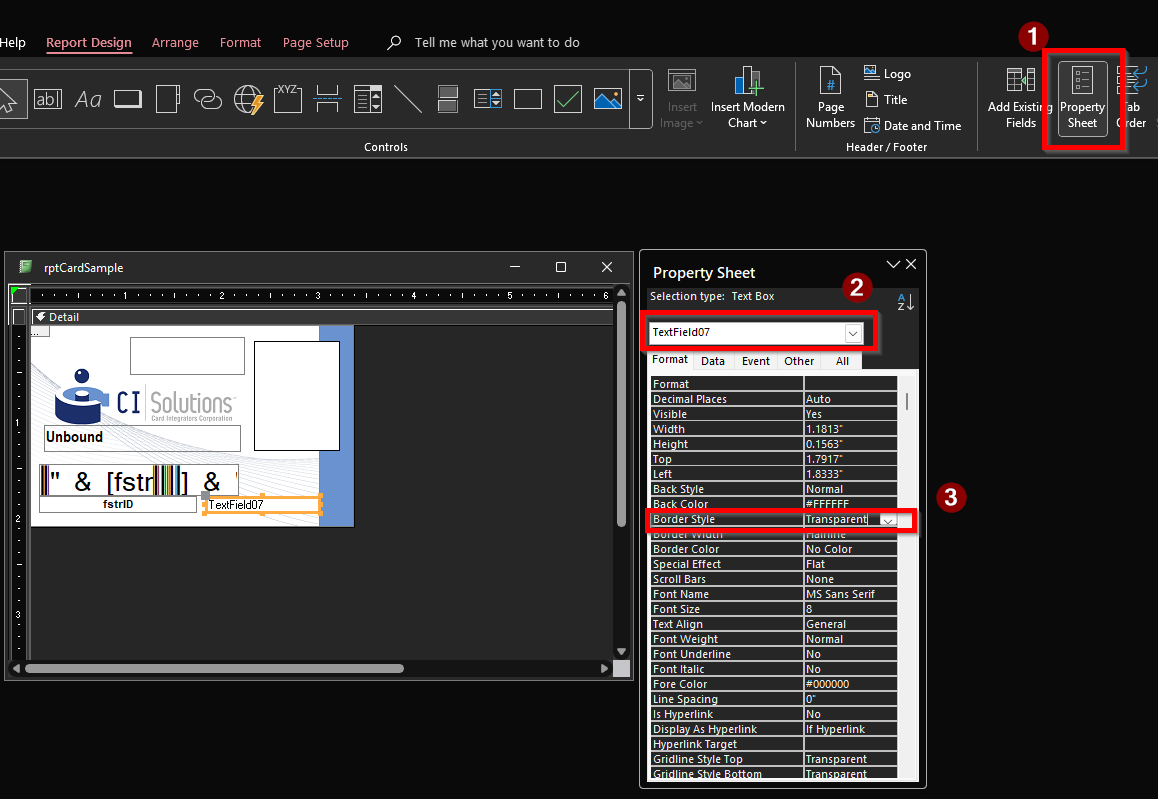
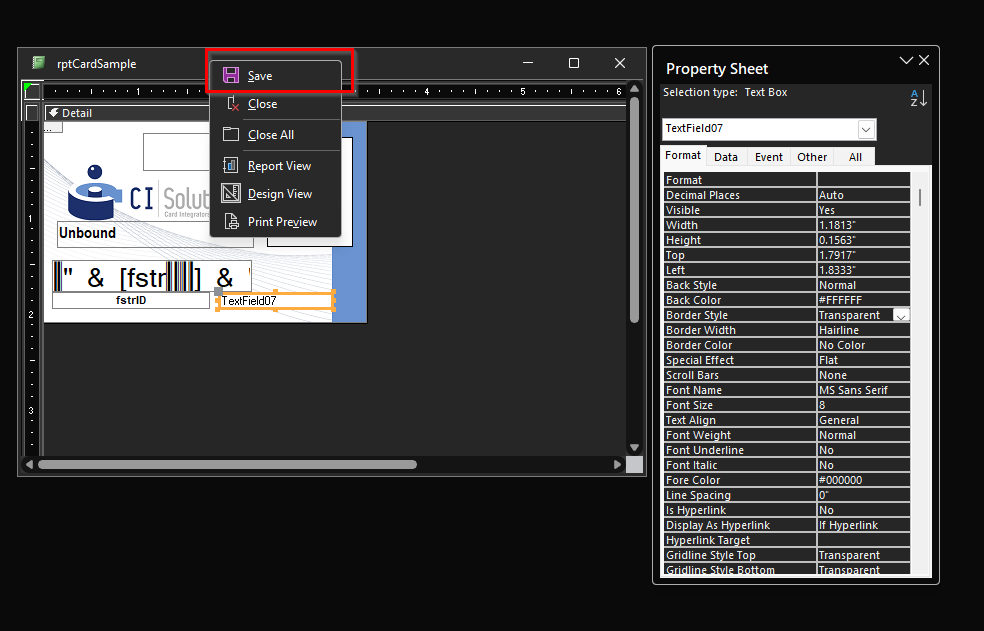
7. Once complete, right-click the top of the rptCard window and hit "Save"
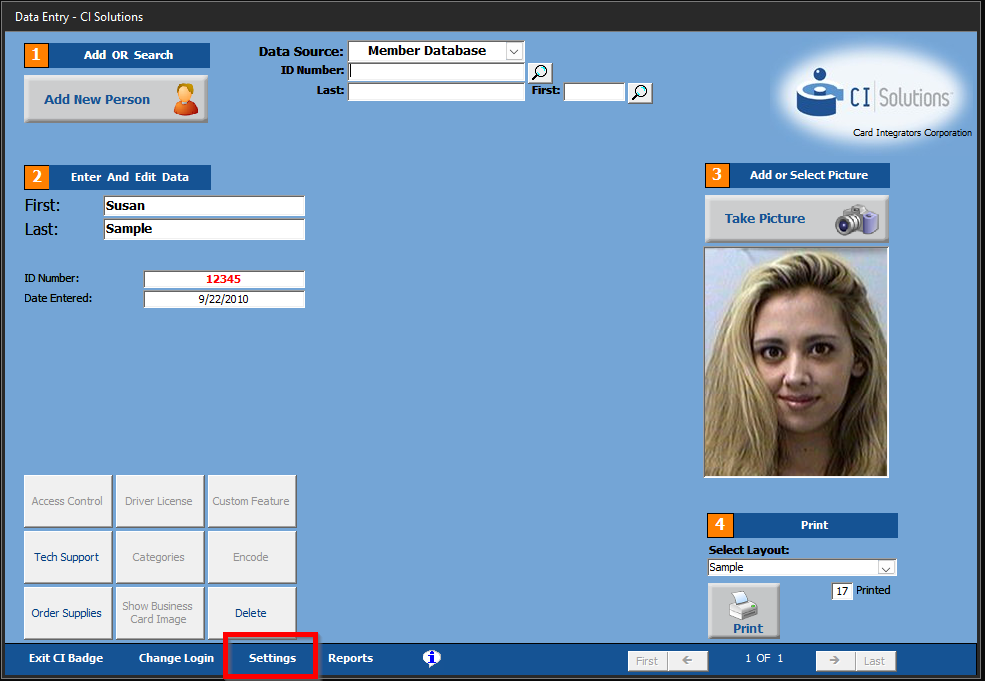
8. Close out of CIBCards82 file and re-open CI Badge to go back to the "Custom Field" tab in settings.
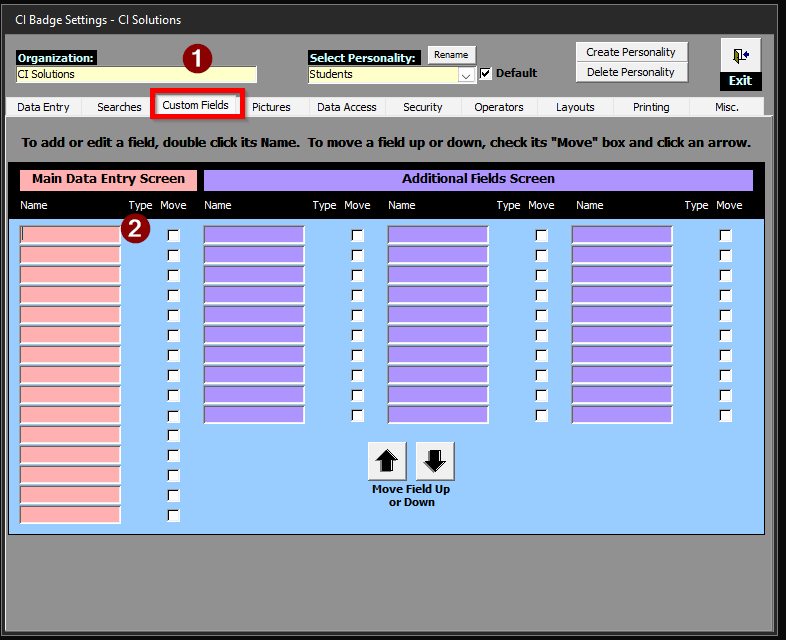
9. Double- click the first available colored cell to assign the TextField
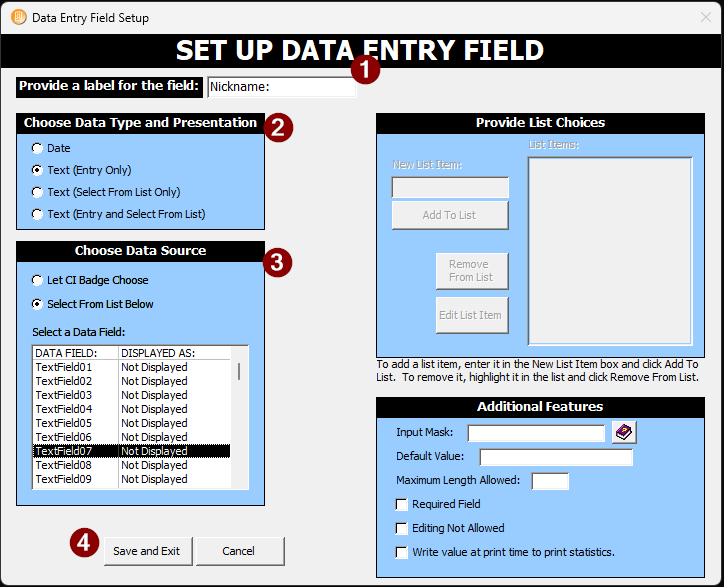
9a. First, name the field
9b. Then select how you would like the data to be inputted.
9c. Select the Custom Field (TextField or DataField) from the previous steps, then hit save.
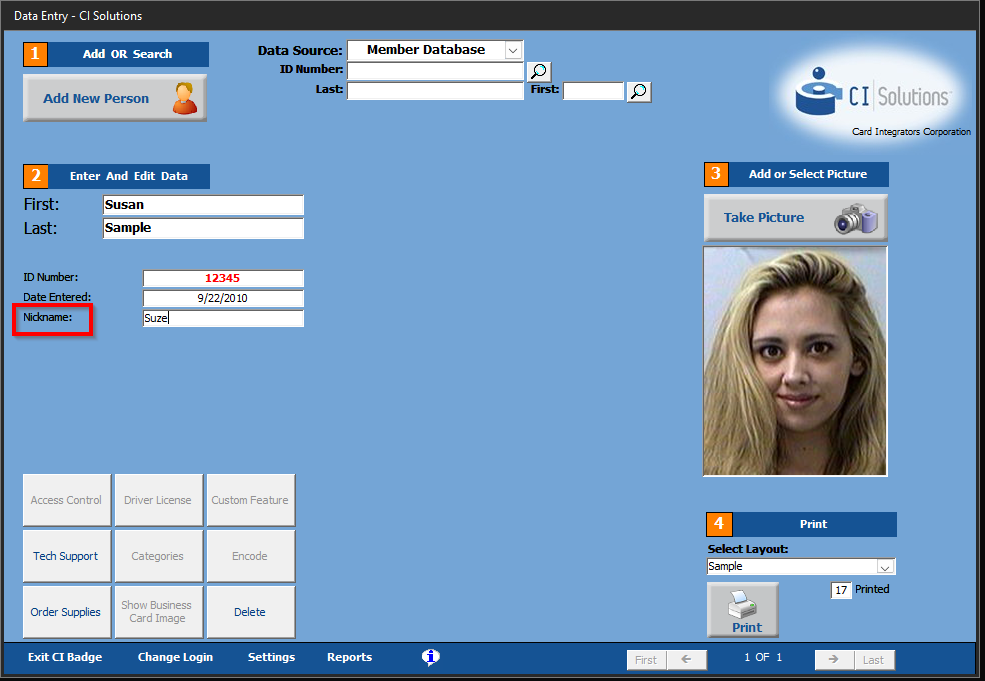
10. Go back to the CI Badge Home Screen and you will see the new Text Field:
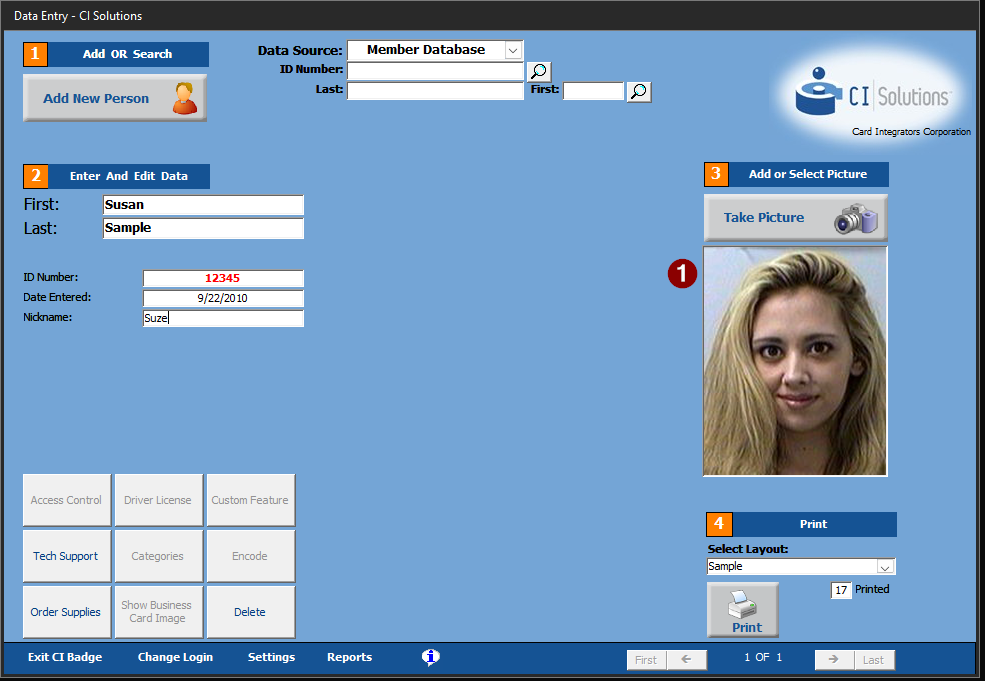
11. To verify that the text now shows up on the layout, you can select the Photo of the person and get a print preview.
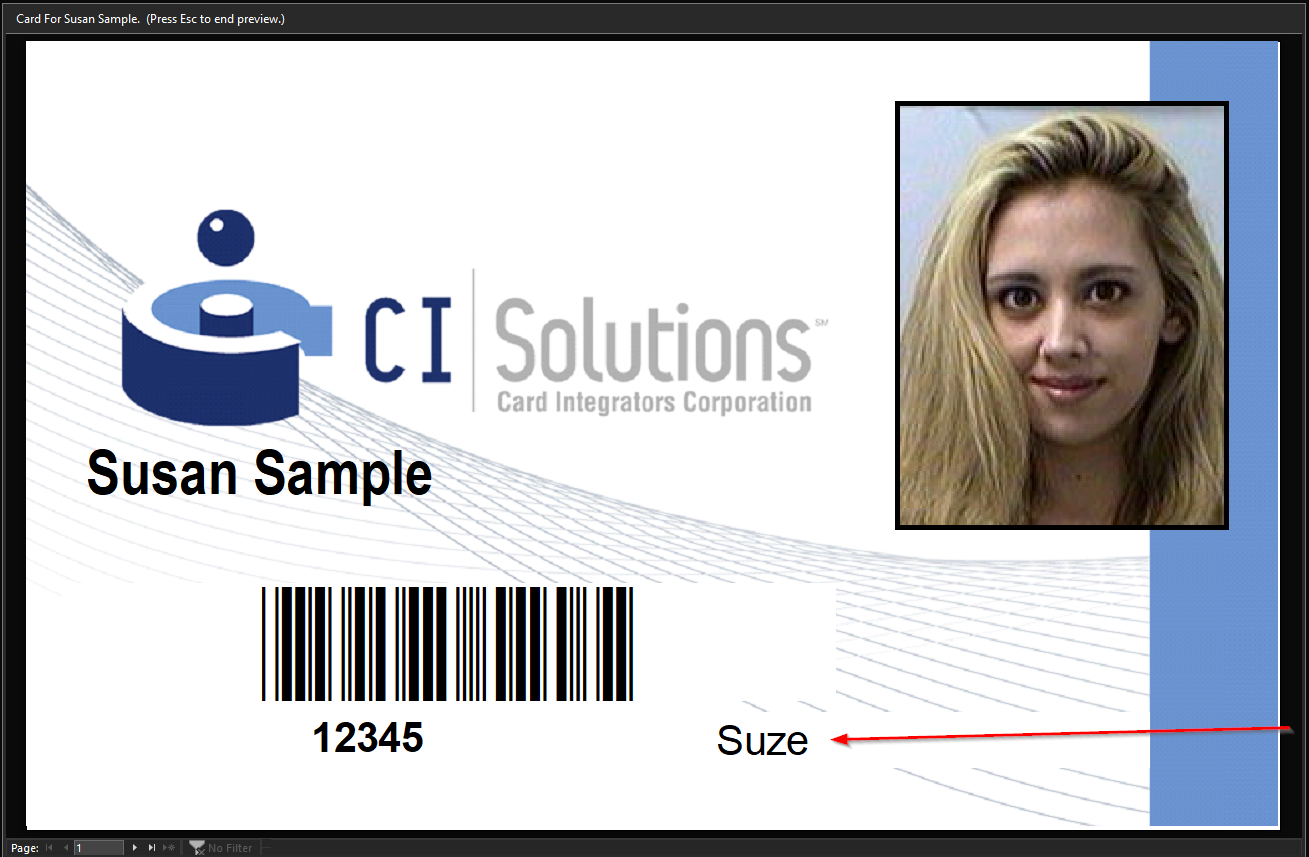
How to add a prefix to the Layout for the new information:
1. In Design View, in the Ribbon, select the "Text Box" and place it where you want it on the layout
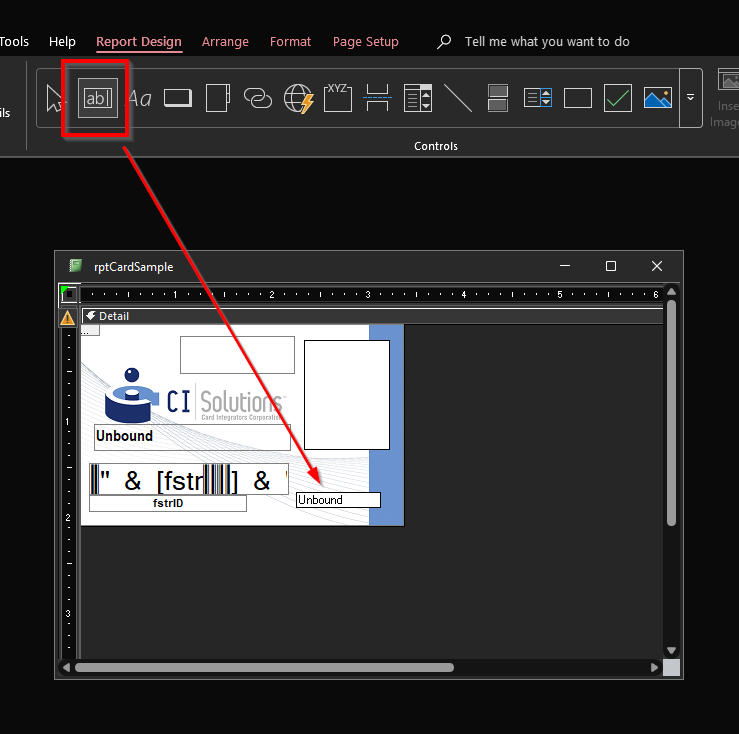
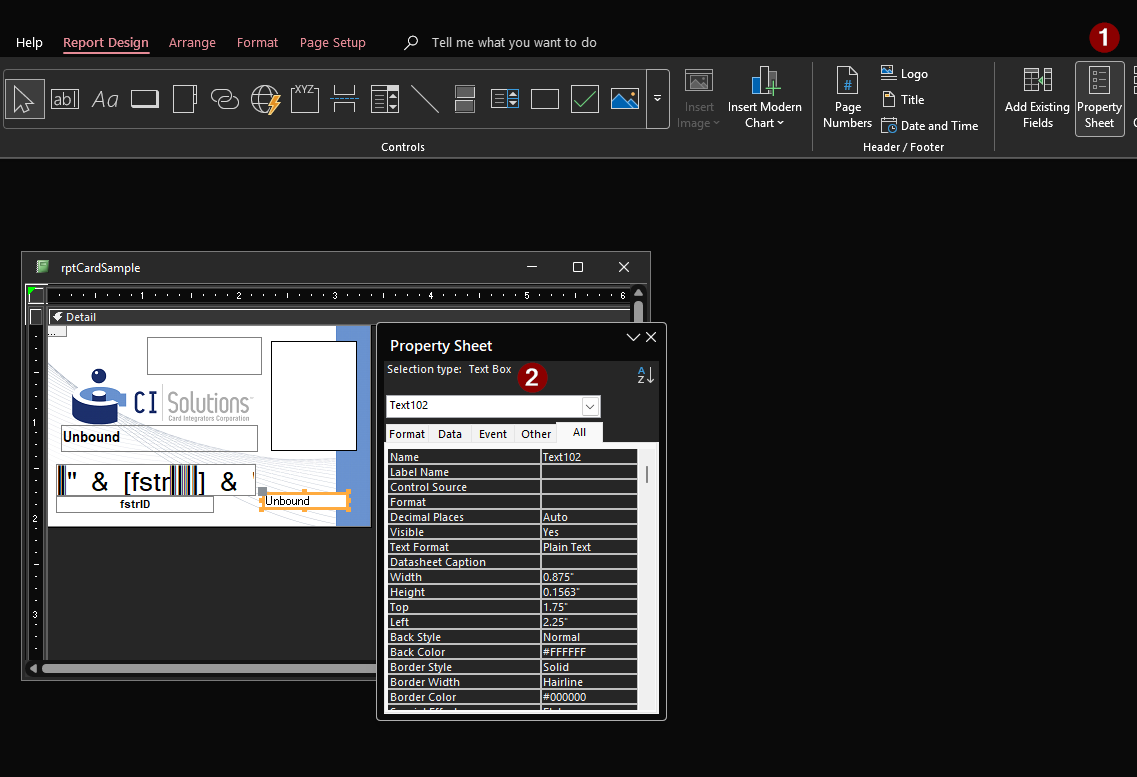
2. In the Ribbon, select Property Sheet then take note of the name of the new TextBox
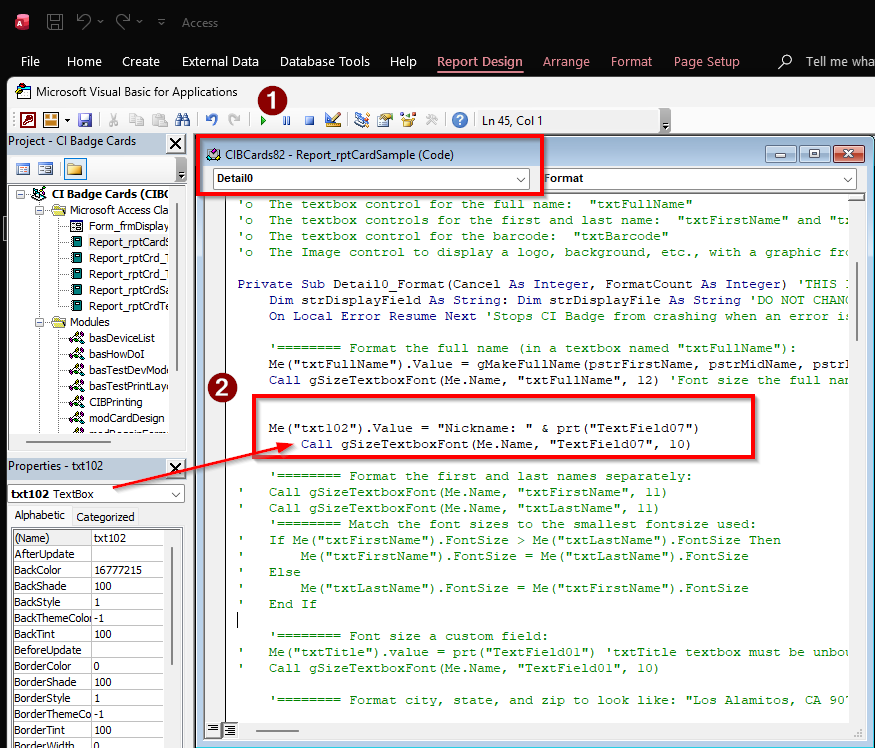
3. Next, Open the code by selecting "View Code" in the top ribbon:

4. Multiple windows panes will open, we want to look at Detail0
4a. We will want to add in this code:
 Me("txtBox").Value = "Prefix: " & prt("TextFieldXX")
        Call gSizeTextboxFont(Me.Name, "TextFieldXX", 10)
txtBox is the Text Box name we notated from the Property Sheet (Step 2) Prefix: is whatever you want the prefix to be on the layout TextFieldXX is the field you will or have setup in CI Badge
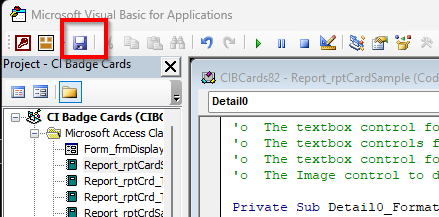
5. Click "Save" once you are done
6. Re-open CI Badge
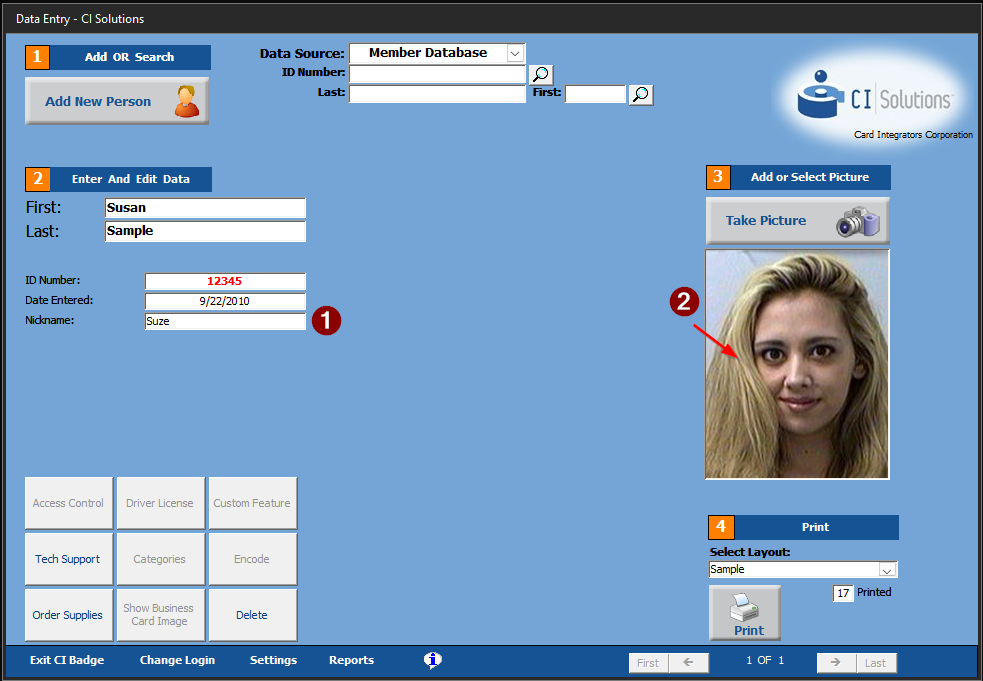
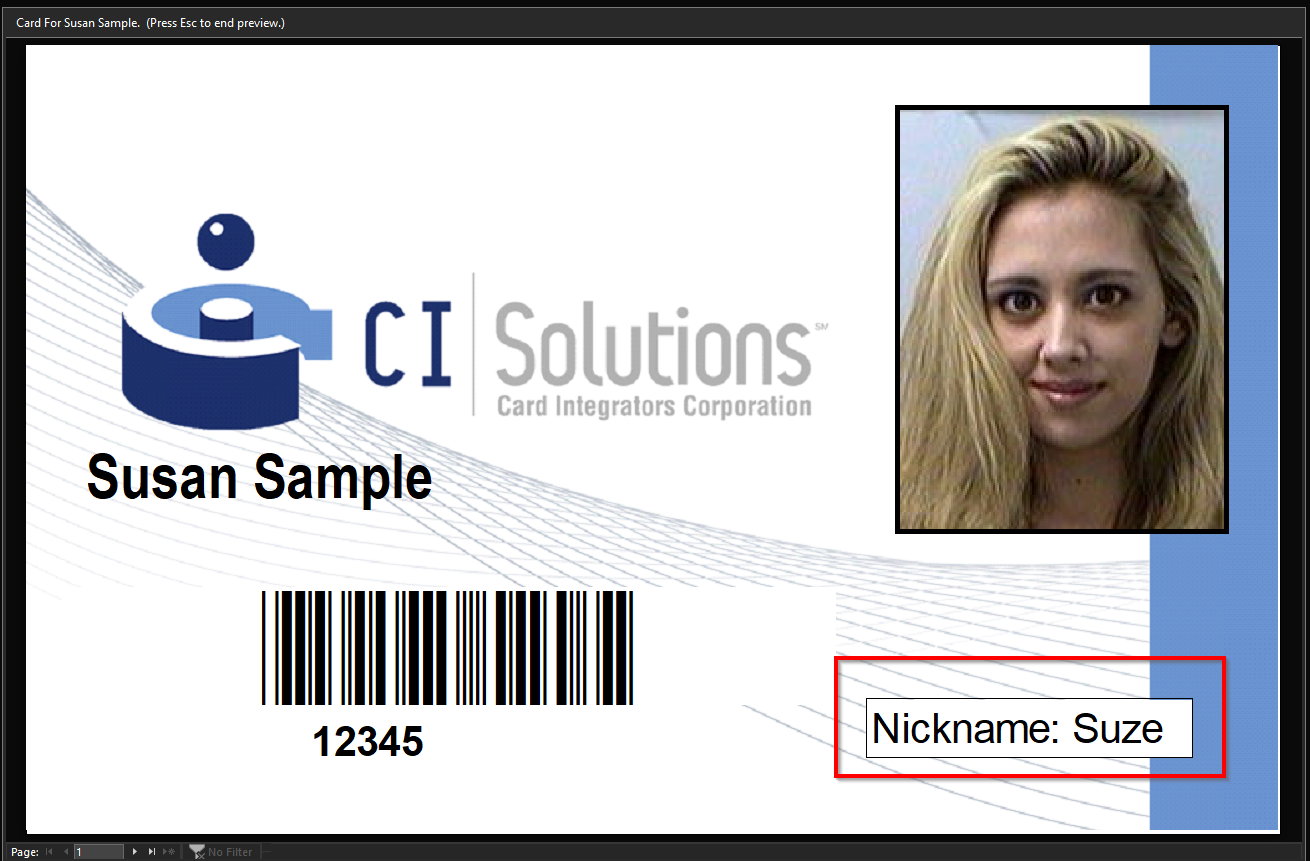
6a. If you have the custom field already setup, click on the profile picture and see a print preview:
6a. If you need to setup the Custom Field, refer to the top of the article.
Was this article helpful?
That’s Great!
Thank you for your feedback
Sorry! We couldn't be helpful
Thank you for your feedback
Feedback sent
We appreciate your effort and will try to fix the article