This guide explains how to enable Google Single Sign-On (SSO) so users can log into Badge using their Google Workspace accounts.

In this guide, users refers to anyone who logs into Badge, including both Owners and Operators.

Most Google Workspace organizations allow Badge to connect automatically. In that case, users can select Sign in with Google and complete a one-time consent step without additional administrator configuration.

If your organization restricts access to third-party applications, a Google Workspace administrator must first approve Badge in the Google Admin console before users can sign in.
What SSO Will Do (and Not Do)
SSO Will:
- Allow users to log into Badge using their Google Workspace accounts
- Eliminate the need for separate Badge passwords
- Allow your organization to control which Google Workspace users can access Badge
SSO Will Not
- Automatically create users in Badge
- Change existing Badge user roles or permissions
- Automatically synchronize users, groups, or organizational units with Badge
- Automatically remove user records from Badge
Badge Owners must continue to create and manage users within Badge.
Before You Begin
Before starting setup, please confirm the following:
- You have Owner access to Badge.
- You are signed in as a Google Workspace Super Admin or an administrator with the necessary API Controls privileges.
- Users who will log in through Google SSO already exist in Badge.
- Each user’s email address in Badge exactly matches their Google Workspace email address.
- You have reviewed the Google SSO Readiness Checklist.
Important: Badge uses a user’s email address to identify and match them during Google SSO login.
For additional guidance, see the SSO Readiness Checklist.
Step 1: Approve Badge in Google Workspace, If Required
Your organization may restrict access to third-party applications. If it does, a Google Workspace administrator must approve Badge before users can sign in with Google.
If your organization does not restrict third-party application access, you may skip this step and continue to Step 2: Select Google as Your Badge Authentication Method.
Approve Badge in the Google Admin Console
- Sign in to the Google Admin console as a Super Admin or an administrator with the necessary API Controls privileges
Navigate to:
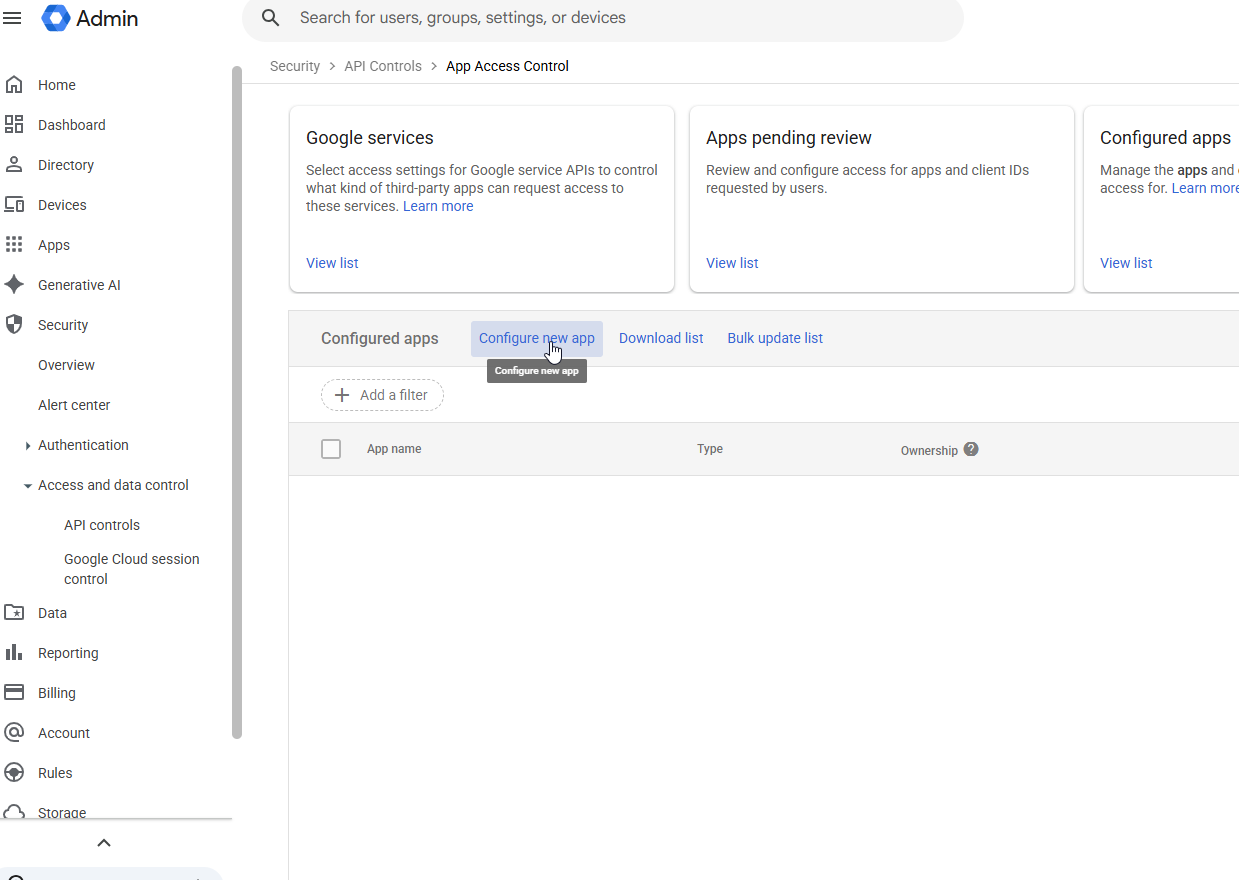
Security → Access and data control → API controls → App access control
- Select Configure new app
Search for Badge using the following client ID:
797892949311-t1l9b8v5ijkkhqg871sg8kjs8949vvag.apps.googleusercontent.com
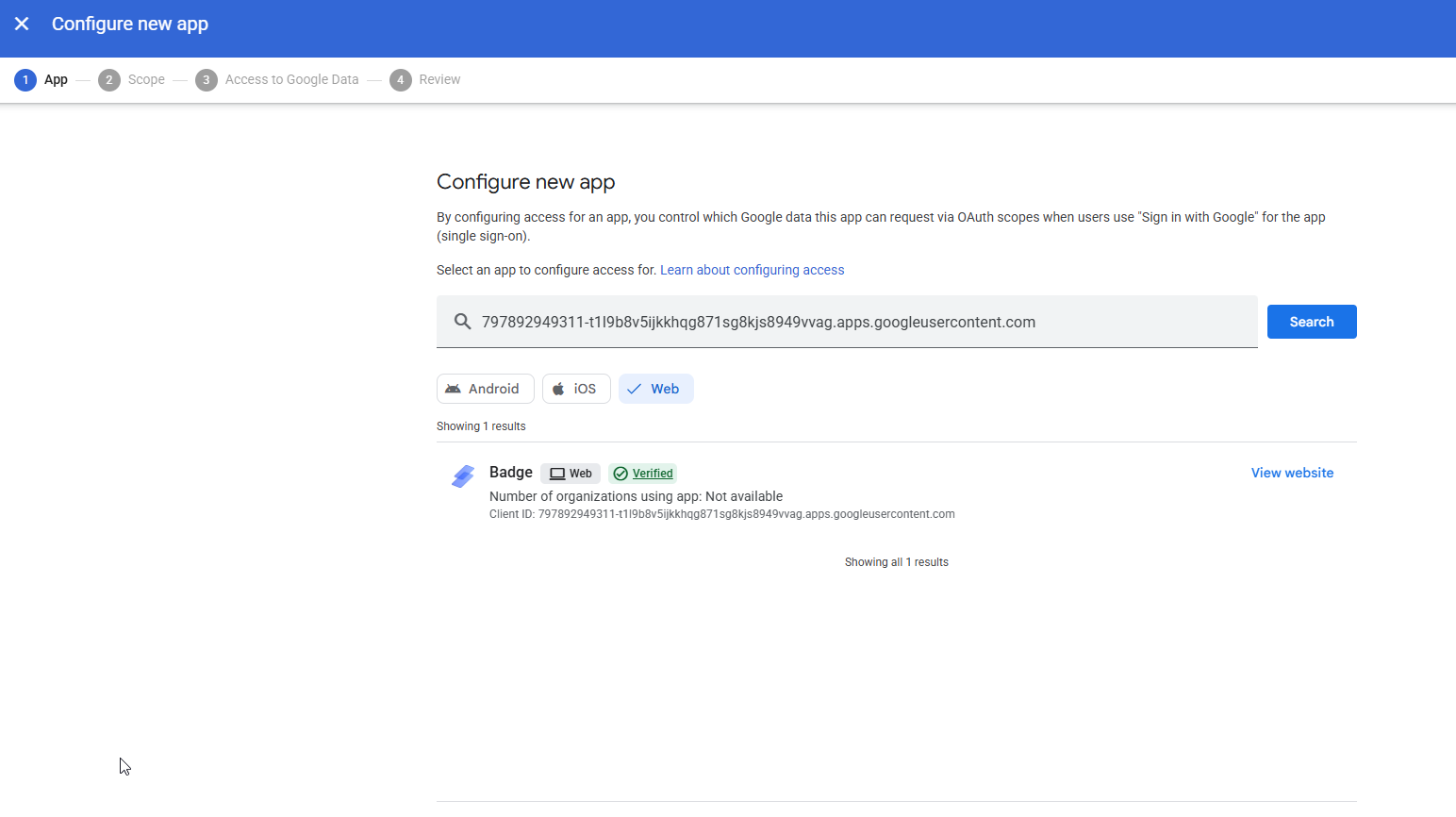
Select Badge from the search results
Badge should appear as a verified application with a Web application label
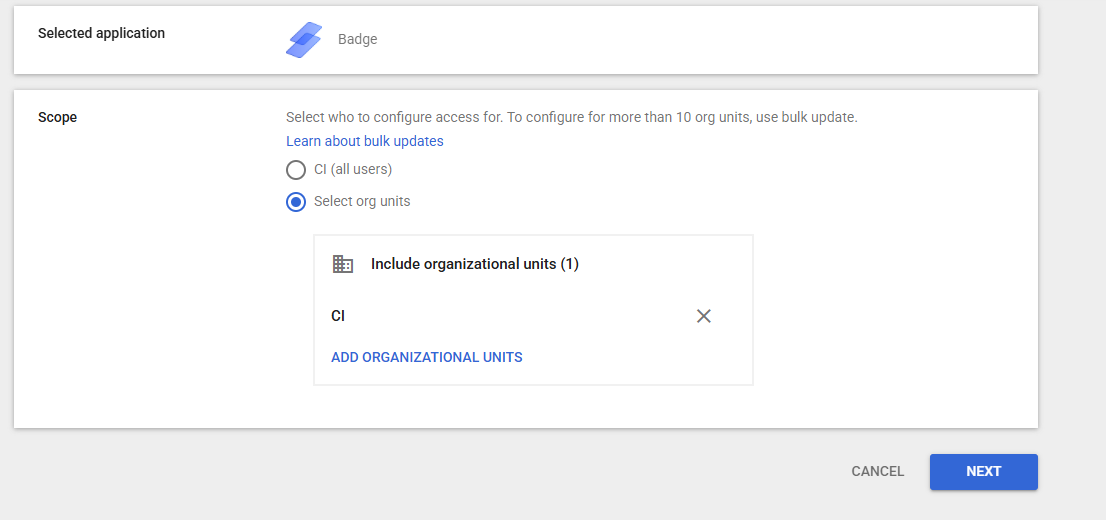
- Choose which users should be allowed to access Badge:
- Specific organizational units, or
- All users in your organization
- Under Access to Google data, select Specific Google data
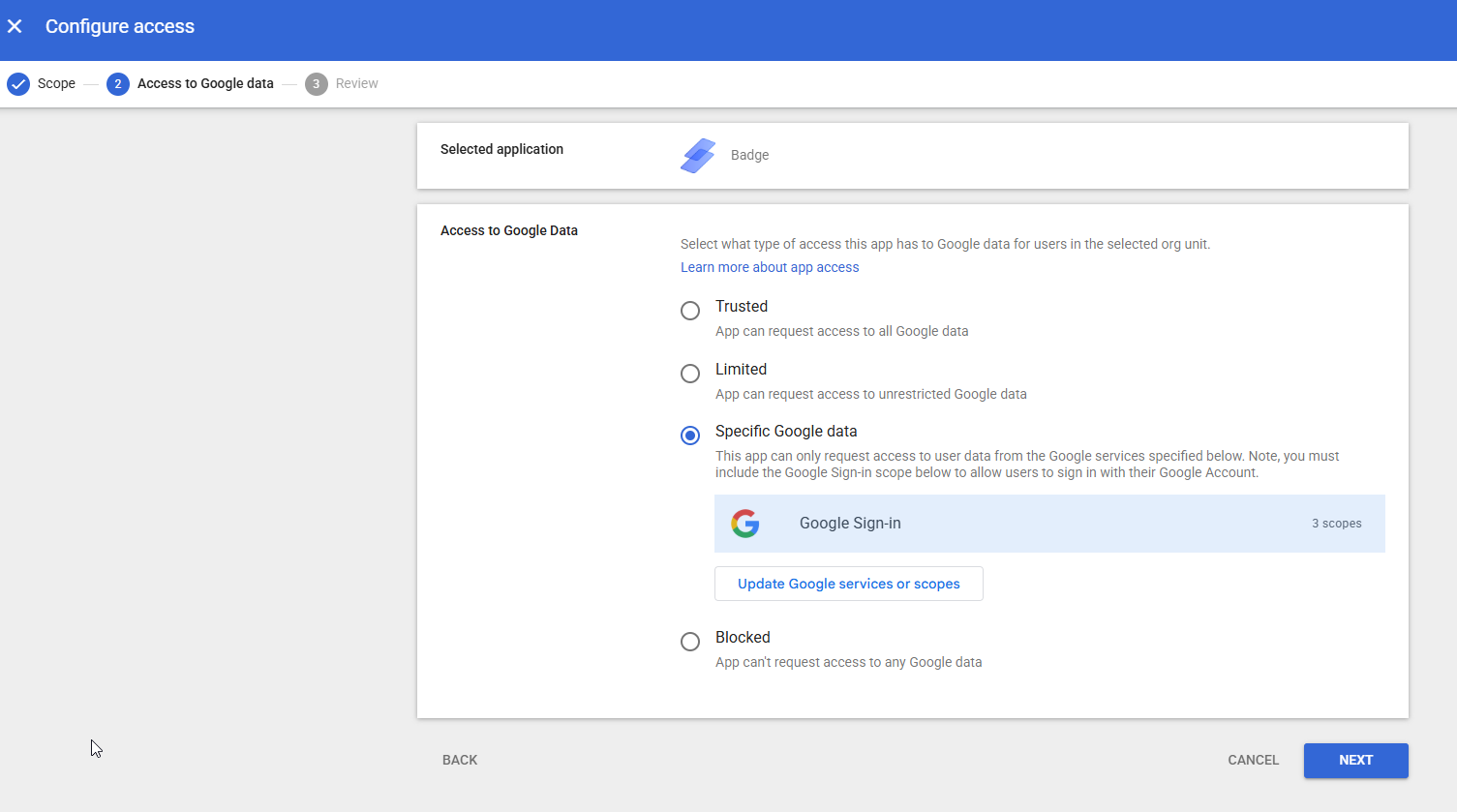
Confirm that the Google Sign-In scope is included
This scope is required for users to sign in to Badge using their Google Workspace account
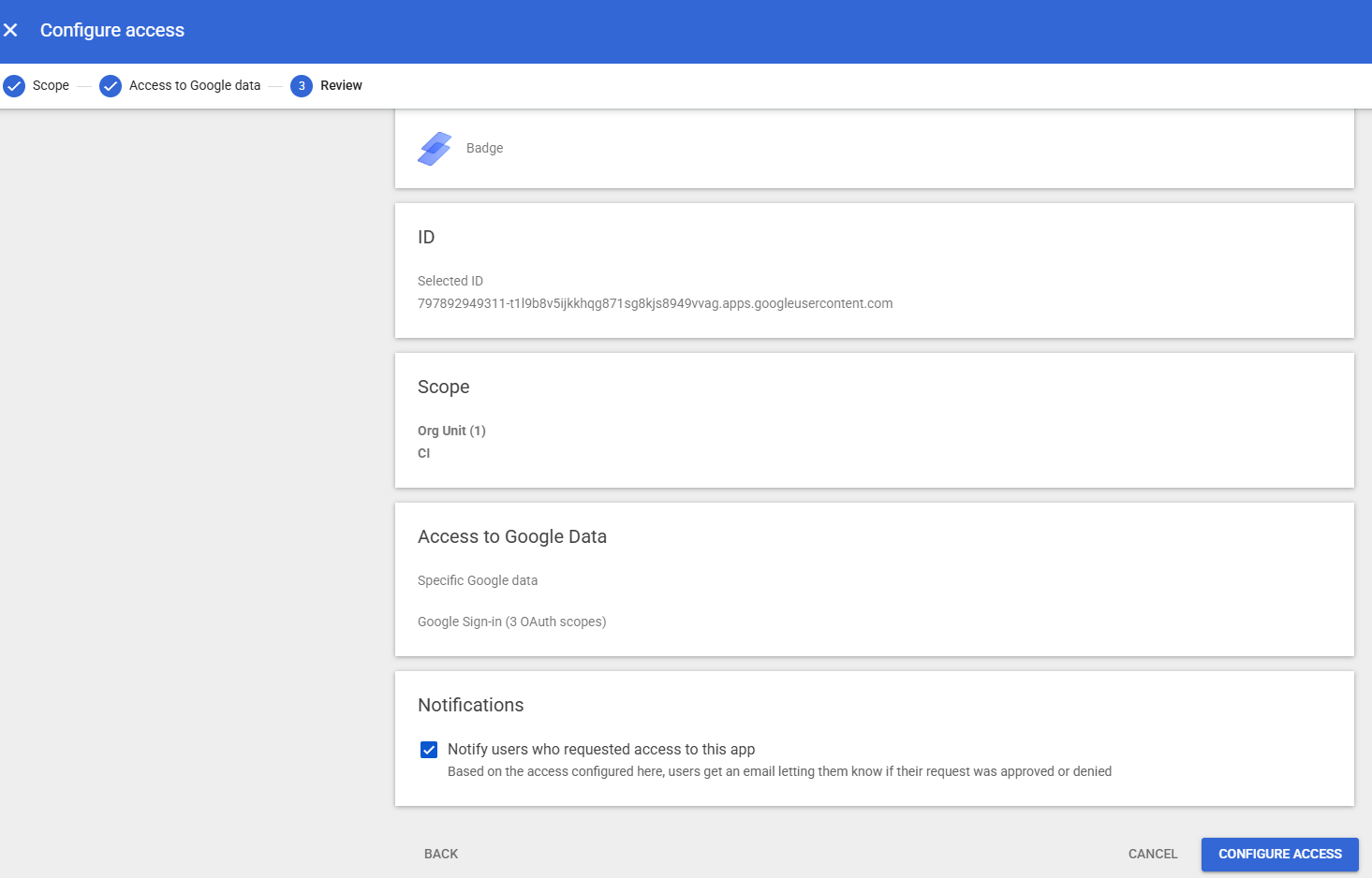
Review your selections and select Configure access
Step 2: Select Google as Your Badge Authentication Method
- Log into Badge as an Owner using your current Badge login method
- Confirm that your Badge Owner email address exactly matches your Google Workspace email address
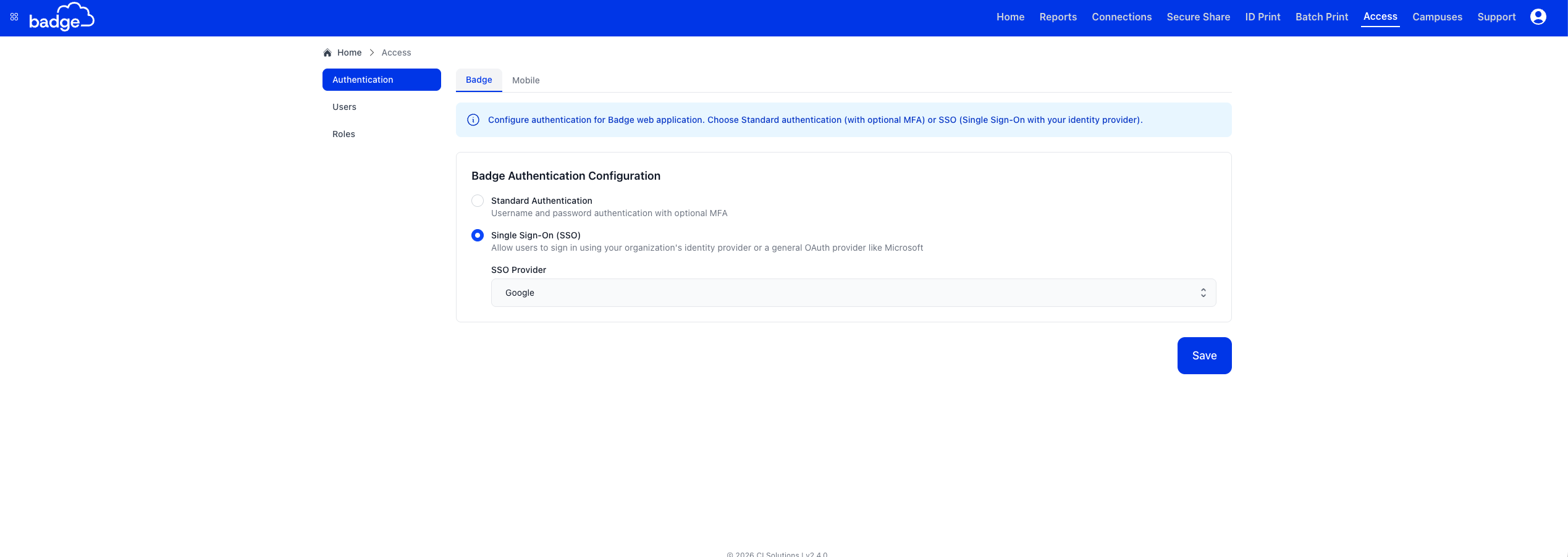
- Navigate to the Access tab in the top navigation
- In the Authentication section, select Single Sign-On (SSO)
- Select Google from the list of identity providers
- Select Save
- Log out of Badge
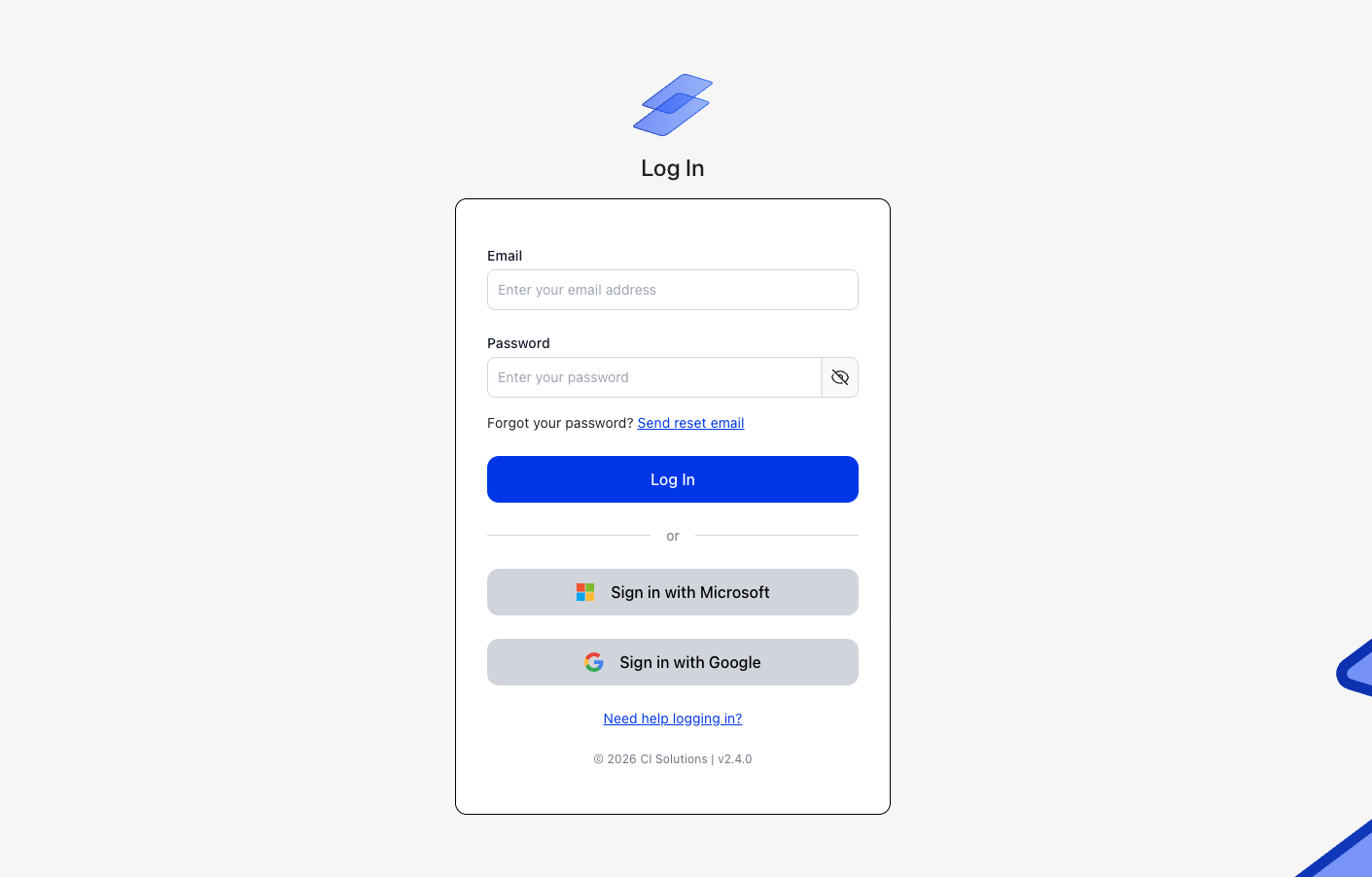
- From the Badge login screen, select Sign in with Google
- Sign in using your Google Workspace account
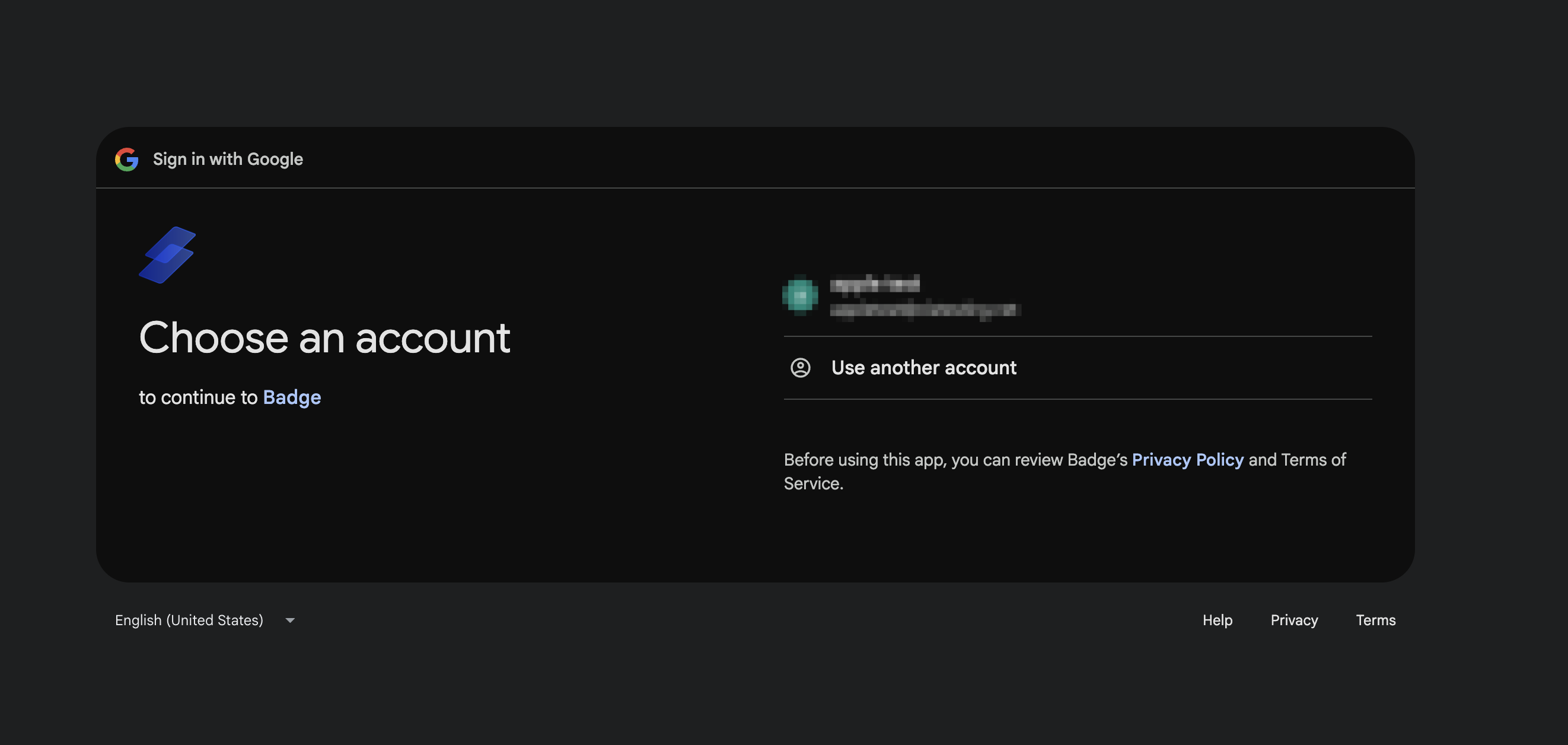
- When Google asks you to allow Badge to access your account information, select Continue
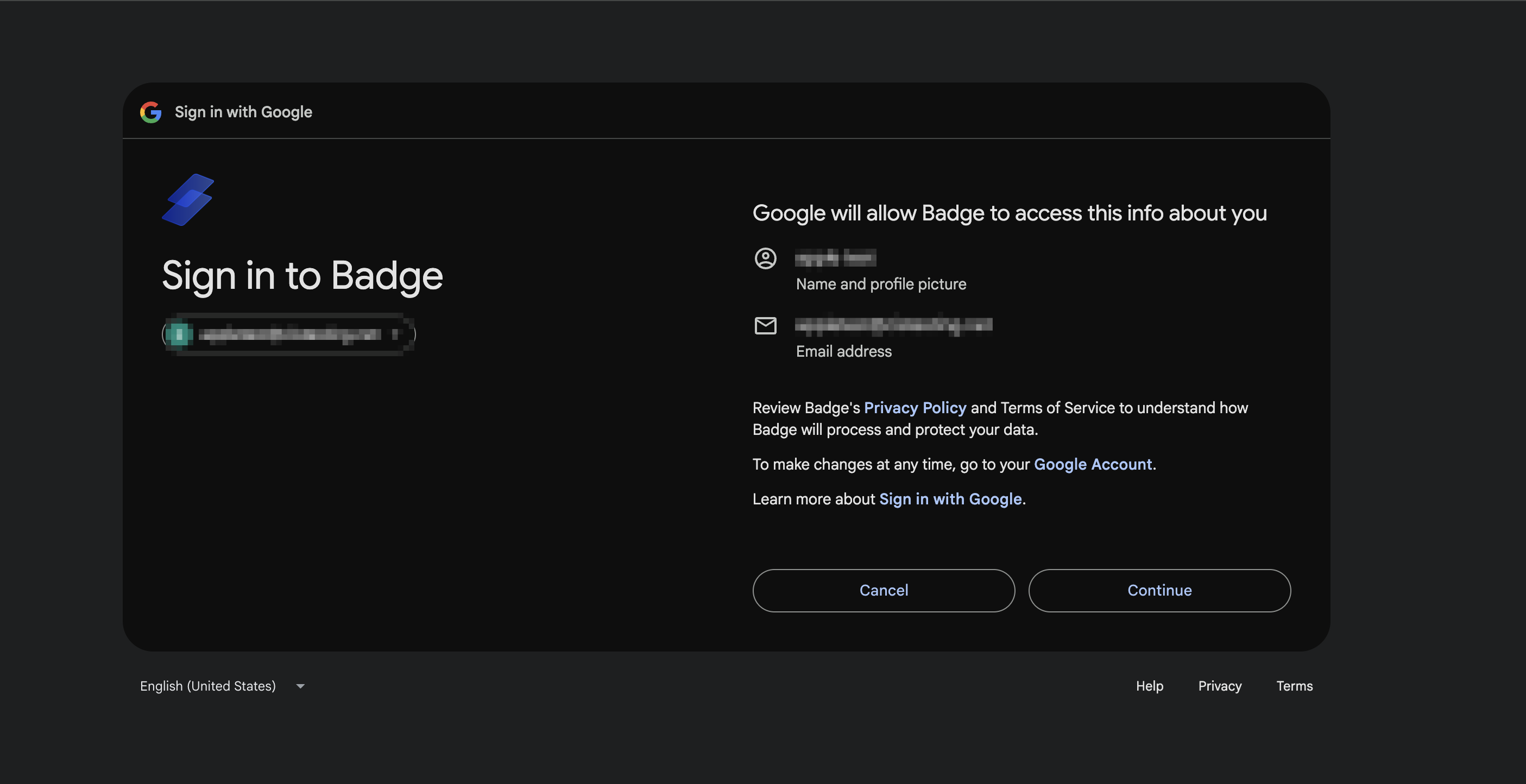
- Confirm that you are redirected to Badge and successfully logged in
If you are not redirected to Badge or receive an error, confirm that Badge was approved for the correct organizational unit in Google Workspace.
Optional Security Recommendation: Google Session Controls
To align Google and Badge sign-in behavior with your organization’s security policies, we recommend reviewing how Google Workspace session controls are configured for users who access Badge.
This is especially important when users access Badge from shared or communal computers, such as front-office or shared staff workstations.
Some organizations configure their Google session policies so that:
- Users must reauthenticate with Google after signing out of Badge.
- Google sign-in sessions do not remain active beyond the intended Badge session.
- Users on shared devices are not automatically signed back into Badge using a previously authenticated Google account.
These policies can help prevent unintended access by the next person who uses a shared device.
Session and access requirements vary by organization. Consult your internal IT team or Google Workspace documentation when determining which policies are appropriate.
Step 3: Confirm User Email Addresses
Badge identifies users during Google SSO login using their email address.
Before proceeding, confirm that:
- Every user who will log in through Google SSO already exists in Badge.
- Each user’s email address in Badge exactly matches their Google Workspace email address.
Important: If the email addresses do not match exactly, the user will not be able to log in through Google SSO.
Verify Email Addresses in Badge
A Badge Owner can review user email addresses directly in Badge:
- Navigate to the Access tab in the top navigation
- Open the Users section
- Review the Email column for each user
- Confirm that each address exactly matches the user’s Google Workspace email address
Tip: If an email address needs to be updated, an Owner can edit the user’s record before continuing with SSO setup.
Important: Updating an email address in Badge does not automatically notify the user. Inform the user separately when appropriate.
Step 4: Choose Which Users Can Access Badge
Google Workspace controls which users are permitted to sign into Badge.
Depending on the access settings selected in Step 1, you can:
- Grant access to specific organizational units, or
- Grant access to all users in your organization
Users must also have an existing account in Badge. Granting access through Google Workspace does not automatically create a Badge user.
Badge will honor the access rules configured in Google Workspace.
Removing a user’s access in Google Workspace will prevent the user from logging into Badge, but it will not delete the user’s Badge account.Step 5: Communicate the New Login Method
After Google has been approved in Google Workspace, when required, and Google has been selected as your Badge SSO provider:
- Notify users that they must now select Sign in with Google
- Tell users which Google Workspace account they should use
- Explain that their previous Badge email-and-password login will no longer work
If an Owner creates a new Badge user after Google SSO has been enabled, the user will receive an automated Welcome to Badge email containing a link to log in using Google SSO. This is expected behavior.
Common Issues & Tips
Login Fails After Google SSO Is Enabled
The most common causes are:
- The email address in Google Workspace does not exactly match the email address in Badge.
- The user does not have an existing Badge account.
- Badge has not been approved for the user’s organizational unit in Google Workspace.
- The Google Sign-In scope was not included when Badge access was configured.
- The user selected the wrong Google Workspace account.
User Sees an "App Blocked" or Access Error from Google
Confirm that:
Badge has been configured under:
Security → Access and data control → API controls → App access control
- Badge has been approved for the user’s organizational unit.
- The Google Sign-In scope was included.
- The user is signing in with an account belonging to the approved Google Workspace organization.
User Can Log Into Google but Not Badge
Confirm that:
- The user already exists in Badge.
- The email address matches exactly between Badge and Google Workspace.
- The user is signing in with the correct Google account.
- The user’s organizational unit has permission to access Badge.
User is Automatically Signed Into the Wrong Google Account
This may occur when multiple Google accounts are active in the same browser.
Ask the user to:
- Sign out of Badge.
- Sign out of the unintended Google account or open a private/incognito browser window.
- Return to Badge.
- Select Sign in with Google.
- Choose the correct Google Workspace account.
Need Help?
If you have followed the steps above and are still experiencing issues enabling Google SSO, please submit a Support ticket.
When submitting your request, include:
- The email address of a test user
- A brief description of the issue
- The exact error message displayed, if applicable
- A screenshot of the error, when possible
- Whether the issue occurs for one user or multiple users
Submit a ticket here if you are still experiencing issues enabling Google SSO.Summary
To enable Google SSO with Badge:
- If your organization restricts third-party applications, approve Badge in Google Workspace App Access Control
- Select Google as your identity provider in Badge
- Confirm that users exist in Badge and are matched by email address
- Grant the appropriate organizational units access to Badge
- Communicate the new sign-in method to your users
Once setup is complete, users can log into Badge using their Google Workspace accounts.
Was this article helpful?
That’s Great!
Thank you for your feedback
Sorry! We couldn't be helpful
Thank you for your feedback
Feedback sent
We appreciate your effort and will try to fix the article