If you are seeing the errors No RFID Reader is detected, Lost Connection to RFID Reader, or RFID Reader Not Responding, check the following:
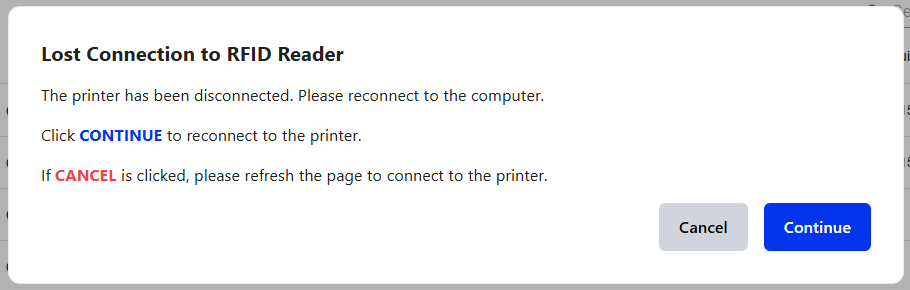


Re-start Badge
1. Log out out of Badge
a. Ensure there is only one Badge tab open
2. Log in and connect to the reader again
a. If you are unsure how to connect to the reader, follow steps 1-3 of this article: ID Print: Print ID Card
Check Printer Connection
1. Check if the USB cable from the printer to the computer has come unplugged or lose
2. Unplug it fully, wait five seconds, then plug it back in
3. Refresh the page and try again
Cycle the Power
1. Unplug the USB and power cable (both cables) from the back of the card printer, leave them unplugged for 5-10 seconds
2. Plug both cables back into the printer. Wait until your printer finishes starting up
Check if the TWN4 is Visible
1. Visit https://webserial.io/
2. Select Serial Port...
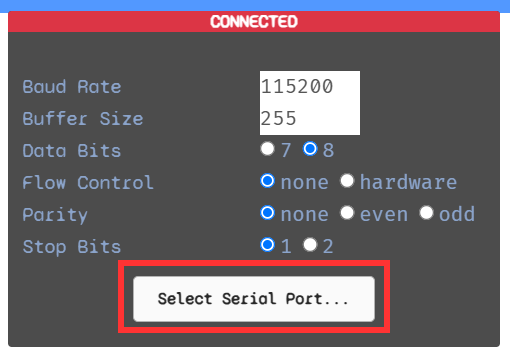
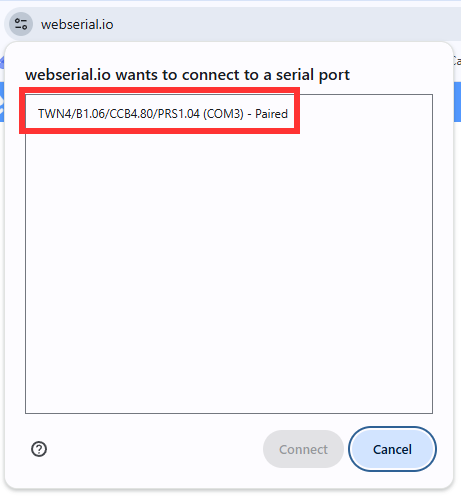
3. Ensure a TWN4 is listed
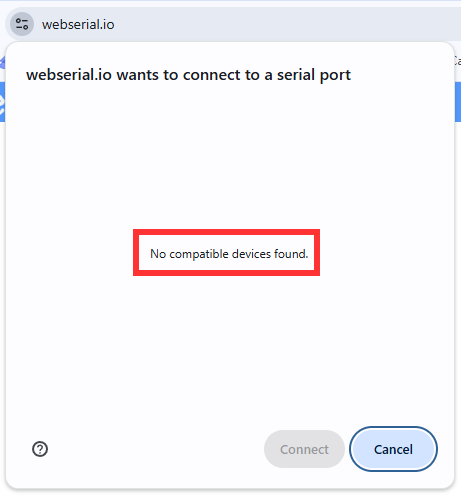
4. If there are no compatible devices found, the printer's RFID Elatec board should be investigated
a. If your printer is an Evolis Altess or Evolis Primacy, see: Evolis Altess: Locate and Secure the RFID Board
b. If your printer is a CIX900, see: CIX900: Locate and Secure RFID Board
Restart Browser
1. Completely close your browser (close all tabs on Chrome or Edge)
- Completely closing your browser entails closing all browser tabs and windows.
- You can open your computer's task manager and force close the entire app.
2. Open your browser log back into Badge to print
- If you restarted your browser and you are still unable to connect to the TWN4 Serial Port, please proceed with the guides below.
Update Browser
1. On the top right corner under the close button, click on the three dots > Click Settings
2. On the left-hand side navigation bar, click About [Browser]
- If you are using Chrome, it should say About Chrome
- If you are using Edge, it should say About Microsoft Edge
- If your browser needs an update, click update.
- If your browser is up to date and you are still unable connect to TWN4 Serial Port, please proceed with the guide below.
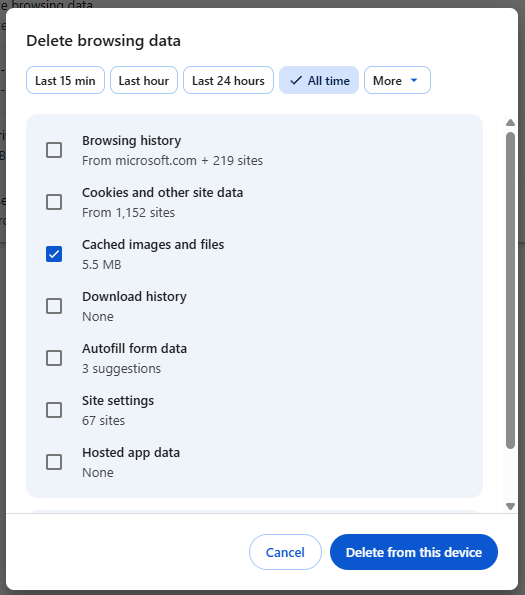
Clear Browser Cache
1. For help in clearing your cache, see: Browser: Clear Cache
2. Ensure you clear cache for All Time, the other browsing data can be left unchecked
Was this article helpful?
That’s Great!
Thank you for your feedback
Sorry! We couldn't be helpful
Thank you for your feedback
Feedback sent
We appreciate your effort and will try to fix the article