In Secure Share, Badge Users can manually add new records.- You must be a Badge Owner or have been given permission as a Badge Operators to access Secure Share and add records.
- Manually adding in records can cause an issue if you are using an Automated Integration.
Add Records
1. Click ENTER in the Secure Share module
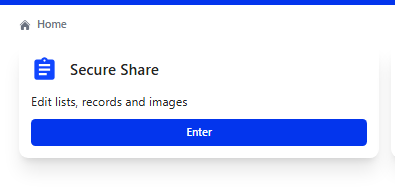
2. Find the List Name (e.g., school, staff, district, office) you want to view > Click VIEW

3. On the left side above the List > Click ADD
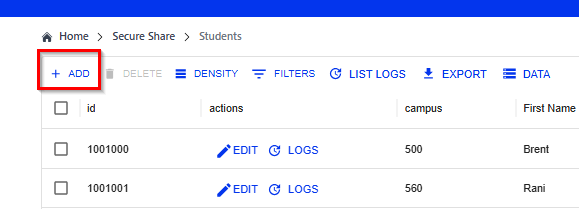
- The record's information will open a small window to input the information.
4. Enter Record's information in the input fields
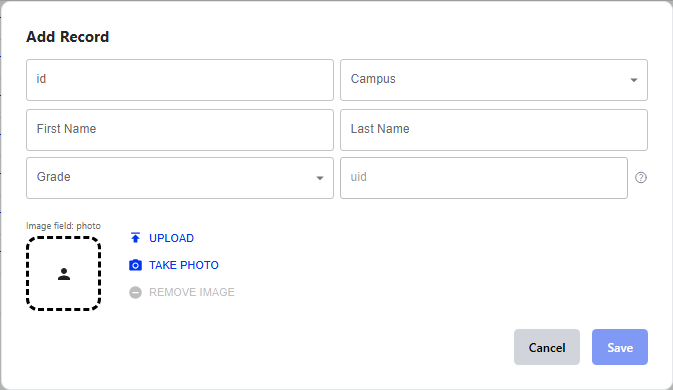
The boxes that are available to fill out are based on the Columns in your List
5. Click SAVE
Was this article helpful?
That’s Great!
Thank you for your feedback
Sorry! We couldn't be helpful
Thank you for your feedback
Feedback sent
We appreciate your effort and will try to fix the article